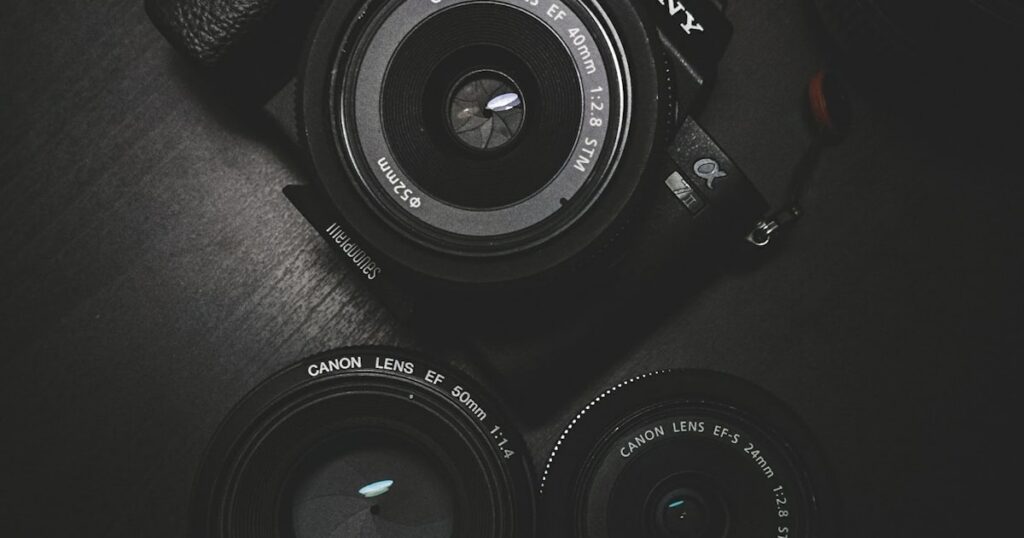
I shoot about 300-500 photos per weekend, all in RAW. That means I regularly need to convert batches of 25-50 MB files into something I can actually share or upload. Over the past two years I’ve tried pretty much every free RAW converter out there, from full-blown editors to simple drag-and-drop tools.
Here’s what actually works in 2026, with real conversion times and quality comparisons from my testing.
| Tool | Type | Batch Support | RAW Formats | Speed (100 files) | Best For |
|---|---|---|---|---|---|
| RawTherapee | Desktop | Yes | 500+ cameras | ~8 min | Full editing + export |
| XnConvert | Desktop | Yes | 400+ formats | ~4 min | Fast batch conversion |
| darktable | Desktop | Yes | 500+ cameras | ~10 min | Lightroom replacement |
| IrfanView | Desktop | Yes | Most common | ~5 min | Quick single/batch |
| Raw.pics.io | Online | Yes (limited) | CR2, NEF, ARW, DNG | ~12 min | No install needed |
| CloudConvert | Online | Yes (25/day free) | Most formats | ~15 min | Occasional use |
| FastStone Viewer | Desktop | Yes | Most common | ~6 min | Viewing + converting |
Quick Background: Why RAW Files Need Converting
RAW files contain unprocessed sensor data from your camera. A single CR2 file from a Canon R6 II is around 25 MB. A Sony ARW from the A7 IV runs about 33 MB. You can’t upload these to Instagram, email them to a client, or even preview them on most phones without a special app.
JPG compresses that data down to 2-8 MB while keeping the image looking sharp enough for 99% of use cases. The trade-off is that you lose the editing flexibility of RAW, but for sharing and archiving, JPG is the standard.
If you need to work with other image formats after conversion, check out our guides on compressing JPG files and converting JPG to PNG.
1. RawTherapee – Best Free RAW Processor Overall
RawTherapee is open source and completely free. No trial period, no watermarks, no “upgrade to pro” nags. I’ve been using it for about 18 months as my primary RAW processor.
The interface looks intimidating at first. There are sliders everywhere and the learning curve is real. But for simple RAW-to-JPG conversion you only need three clicks: open file, choose output format, hit export.
How to Convert
Open your RAW file in RawTherapee. The default processing profile applies automatic exposure and white balance corrections, which honestly look decent most of the time. Go to the “File Browser” tab, select all files you want to convert, right-click, and choose “Put to Queue.” Set the output format to JPEG and quality to 92-95%. Hit “Start Processing.”
For 100 CR2 files from my Canon R6, conversion took about 8 minutes on a Ryzen 5600X with 16 GB RAM.
Pros
- Supports 500+ camera models
- Full RAW editing capabilities (exposure, color grading, noise reduction)
- Batch processing via queue system
- Runs on Windows, Mac, and Linux
- No file size or count limits
Cons
- Complex interface for a simple conversion task
- Uses a lot of RAM when processing multiple files
- No GPU acceleration in current builds
2. XnConvert – Fastest Batch Converter
If you just need to convert a pile of RAW files to JPG without editing them, XnConvert is the tool. It’s built specifically for batch image conversion and it does that job faster than anything else I’ve tested.
The interface is simple: drag files in, pick your output format, set quality, go. You can also add actions like resize, rename, or add a watermark during conversion, but you don’t have to.
How to Convert
Download XnConvert (free for personal use). Drop your RAW files into the Input tab. Go to Output, select JPG, set quality to 95%. Click Convert. That’s it.
I converted 400 CR2 files in about 6 minutes. The output quality at 95% was indistinguishable from RawTherapee’s output at the same setting when I compared them side by side.
Pros
- Extremely fast batch processing
- Dead simple interface
- 400+ input formats supported
- Automatic renaming patterns for output files
- Windows, Mac, Linux
Cons
- No RAW editing controls (exposure, white balance)
- Uses default camera JPEG rendering
- Commercial use requires a paid license ($20)
3. darktable – Lightroom Alternative That’s Actually Free
darktable is what you use if you want Lightroom-level organization and editing without paying $10/month forever. It handles the full workflow: import, organize, edit, export. For pure conversion it’s overkill, but if you’re already using it for photo management, the export function works well.
The non-destructive editing pipeline means your original RAW files never get modified. Every adjustment is stored as metadata. When you export to JPG, darktable applies all your edits and renders the final file.
How to Convert
Import your RAW files into darktable’s lighttable view. Select the photos you want to convert. In the export module on the right panel, choose JPEG as the output format, set quality to 95%, pick your output folder. Hit Export. For 100 NEF files from a Nikon Z6 III, this took around 10 minutes.
Pros
- Professional editing tools included
- Photo library management built in
- GPU acceleration available (OpenCL)
- Handles 500+ camera models
- 100% free and open source
Cons
- Steep learning curve, steeper than RawTherapee honestly
- Windows version has occasional stability issues
- Import process adds overhead if you just want quick conversion
4. IrfanView – The Old Reliable
IrfanView has been around since 1996 and it still works perfectly for this. Install IrfanView plus the plugins pack (which adds RAW support), and you can open and convert pretty much any image format that exists.
Look, the UI looks like it’s from 2004 because it is. But it opens a 30 MB RAW file in under 2 seconds, and the batch conversion dialog does exactly what it says. For Windows users who want something lightweight and no-nonsense, this is hard to beat.
How to Convert
For a single file: open the RAW file, go to File > Save As, choose JPEG, set quality. For batch conversion: go to File > Batch Conversion, add your RAW files, select JPG output, set options, click Start. 100 ARW files took about 5 minutes.
Pros
- Tiny install size (under 5 MB with plugins)
- Extremely fast for single file conversion
- Batch conversion and batch rename in one step
- Free for personal use
Cons
- Windows only
- Outdated interface
- No color management or RAW development controls
- Plugin pack must be installed separately for RAW support
5. Raw.pics.io – Best Online Converter (No Install)
Raw.pics.io runs entirely in your browser. No uploads to a server either – it processes files locally using WebAssembly. That’s a privacy win if you’re working with client photos.
I tested it with CR2 and NEF files and it handled both without issues. ARW files from Sony cameras also worked fine. The conversion quality was good, though you don’t get the same level of control as desktop tools. You can adjust exposure and white balance before converting, which is more than most online tools offer.
How to Convert
Go to raw.pics.io, drag your RAW files onto the page. The tool reads them in your browser. Click on each image to adjust settings if needed, then hit Save to download as JPG. Batch download is available as a ZIP file.
Converting 20 NEF files (about 500 MB total) took roughly 3 minutes in Chrome. Not as fast as desktop tools for large batches, but perfectly fine for occasional use.
Pros
- No software to install
- Files stay on your computer (browser-based processing)
- Basic exposure and white balance adjustments
- Works on any OS with a modern browser
Cons
- Slow with large batches (50+ files)
- Browser can crash with very large files (60+ MB)
- Limited format support compared to desktop tools
6. CloudConvert – For Occasional Conversions
CloudConvert is a web-based converter that handles 200+ formats. You get 25 free conversions per day, which is enough if you’re not doing this regularly. Files are processed on their servers and deleted after 24 hours.
The nice thing about CloudConvert is the API access. If you’re a developer or you need to integrate conversion into a workflow, they have a REST API with the same free tier. For regular photo conversion though, the desktop tools above are better choices.
How to Convert
Upload your RAW files at cloudconvert.com. Select JPG as the output format. Optionally set quality and resolution. Click Convert. Download the results individually or as a ZIP. For 10 CR2 files, the whole process (upload, convert, download) took about 4 minutes on my connection.
Pros
- Works on any device with a browser
- API access for automation
- Handles files up to 1 GB on the free tier
- Clean, modern interface
Cons
- 25 free conversions per day limit
- Requires uploading files to external servers
- Slower than desktop tools due to upload/download time
- No RAW editing controls
7. FastStone Image Viewer – Viewer That Converts
FastStone is primarily a photo viewer, but its built-in batch convert function handles RAW files surprisingly well. I used it as my main image viewer for years before switching to XnView, and the conversion feature was always solid.
Here’s the thing about FastStone: it applies your camera’s embedded JPEG preview when rendering RAW files. This means the conversion is fast but you’re not getting the full RAW processing that RawTherapee or darktable provide. For most people sharing photos on social media or sending to family, the difference doesn’t matter.
How to Convert
Open FastStone, navigate to your RAW folder. Select files, go to Tools > Batch Convert Selected Images. Choose JPEG output, set quality, pick a destination folder. Converting 100 RAF files from a Fuji X-T5 took about 6 minutes.
Pros
- Fast and lightweight viewer with conversion built in
- Good batch conversion with rename options
- Supports most common RAW formats
- Free for personal use
Cons
- Windows only
- Uses embedded JPEG preview, not full RAW processing
- No editing controls during conversion
- Doesn’t support some newer camera models right away
Which Tool Should You Pick?
It depends on how many files you’re converting and whether you want to edit them first.
For quick batch conversion without editing: XnConvert. It’s the fastest and simplest option. Drop files in, get JPGs out.
For converting with exposure/color adjustments: RawTherapee. The editing tools are professional-grade and the queue system handles batches well.
For a full photo workflow (import, organize, edit, export): darktable. It replaces Lightroom if you’re willing to learn it.
For one-off conversions without installing anything: Raw.pics.io. Browser-based, private, decent quality.
For Windows users who want something tiny and fast: IrfanView with the plugins pack.
After converting, you might want to compress your JPG files further for web use, or resize them online if they’re still too large.
RAW Formats Supported by Each Tool
| Format | Camera Brand | RawTherapee | XnConvert | darktable | IrfanView | Raw.pics.io |
|---|---|---|---|---|---|---|
| CR2 / CR3 | Canon | Yes | Yes | Yes | Yes | Yes |
| NEF | Nikon | Yes | Yes | Yes | Yes | Yes |
| ARW | Sony | Yes | Yes | Yes | Yes | Yes |
| ORF | OM System / Olympus | Yes | Yes | Yes | Yes | Partial |
| RAF | Fujifilm | Yes | Yes | Yes | Yes | No |
| RW2 | Panasonic | Yes | Yes | Yes | Yes | No |
| DNG | Adobe / Various | Yes | Yes | Yes | Yes | Yes |
| PEF | Pentax | Yes | Yes | Yes | Partial | No |
Tips for Getting the Best JPG Quality from RAW
Set your export quality to 92-95%. Going above 95% increases file size a lot without visible improvement. Below 90% you start seeing compression artifacts in gradients and skies.
If you’re exporting for web, resize to your target dimensions before exporting. A 6000×4000 image saved at 95% quality is around 8 MB. Resizing to 2000×1333 first brings that down to about 1.5 MB with the same visual quality at screen size.
Keep the color space as sRGB for web sharing. AdobeRGB and ProPhoto RGB look wrong on most monitors and browsers because they require color-managed viewing. sRGB is the web standard and it’s what Instagram, Facebook, and every other platform expects.
Always keep your original RAW files. JPG conversion is a one-way trip – you can’t get the RAW data back from a JPG. Hard drives are cheap. A 2 TB external drive holds roughly 60,000 RAW files and costs about $60.
Need to do other photo editing tasks? Our guide to the best free photo editors covers tools that work well alongside these converters.
Frequently Asked Questions
Can I convert RAW to JPG without losing quality?
You always lose some data going from RAW to JPG because JPG is a lossy format. But if you export at 95-100% quality, the difference is invisible to the human eye. Tools like RawTherapee and darktable let you control the exact compression level.
What RAW formats can these tools convert?
Most tools in this list support CR2, CR3 (Canon), NEF (Nikon), ARW (Sony), ORF (OM System/Olympus), RAF (Fuji), DNG (Adobe), and RW2 (Panasonic). RawTherapee and darktable support over 500 camera models.
Is there a free online RAW to JPG converter with no file size limit?
CloudConvert handles files up to 1 GB on the free plan, which covers most RAW files (typically 20-60 MB each). Raw.pics.io has no explicit size limit since processing happens in your browser. For truly unlimited batch conversion, use a desktop tool like XnConvert or IrfanView.
What is the best free RAW converter for beginners?
IrfanView is the simplest option. Open the RAW file, hit Save As, pick JPG, done. For batch conversion of hundreds of files, XnConvert has a drag-and-drop interface that takes about 2 minutes to figure out. Both are completely free.
Can I batch convert RAW to JPG for free?
Yes. XnConvert, IrfanView (via batch conversion), RawTherapee (queue system), and darktable (lighttable export) all support batch conversion. XnConvert is the fastest for pure batch work – I converted 400 CR2 files in under 6 minutes.