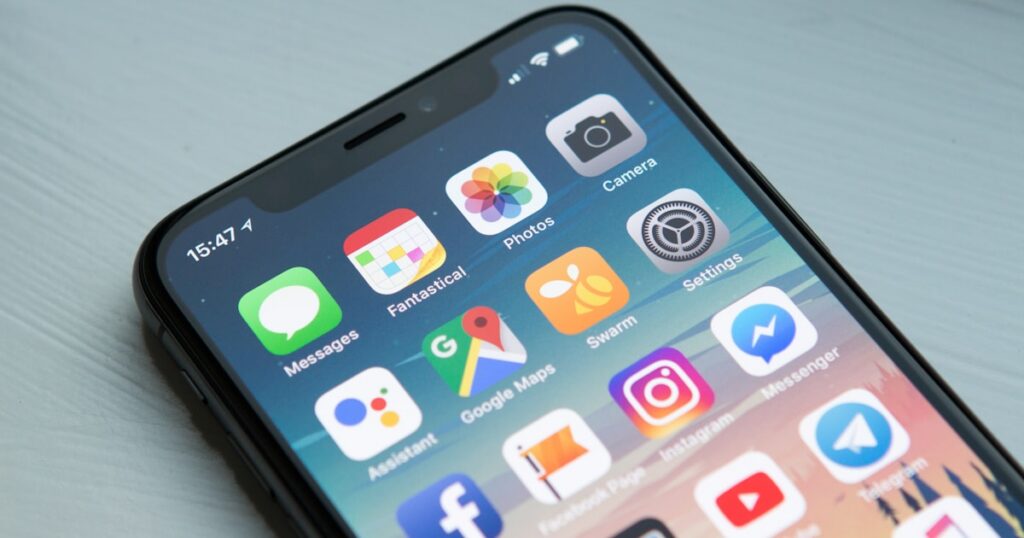
Converting a PDF to PowerPoint on your iPhone sounds like it should be simple. It’s not. Most tools either mangle the layout, turn every slide into a flat image, or hit you with a paywall after one file. I tested 15 different apps and web tools over three weeks to find what actually produces editable, usable PPTX files from PDFs on iOS. Some were terrible. A handful were genuinely good. If you also need general PDF editing on the go, my roundup of the best free PDF editors covers the broader toolkit. This guide is laser-focused on getting your PDF into PowerPoint format on an iPhone without paying.
Quick Comparison: PDF to PowerPoint on iPhone
| Tool | Type | Free Limit | Layout Quality | Editable Text? | Best For |
|---|---|---|---|---|---|
| Adobe Acrobat Reader | iOS App | 1 free export, then $9.99/mo | Excellent | Yes | Complex slide layouts |
| Smallpdf | iOS App + Web | 2 tasks/day | Very Good | Yes | Clean presentation PDFs |
| iLovePDF | iOS App + Web | 3 files/day | Good | Yes | Multiple files at once |
| PDF2Go | Web | Unlimited (with ads) | Good | Yes | No account needed |
| CloudConvert | Web | 25 conversions/day | Very Good | Yes | Large files up to 100 MB |
| Zamzar | Web | 2 files/day, 25 MB | Good | Partial | Quick one-off conversions |
| Canva | iOS App + Web | Free (unlimited imports) | Fair | Yes (rebuilt) | Redesigning from a PDF base |
1. Adobe Acrobat Reader – Highest Accuracy
The Acrobat Reader iOS app can export PDFs to PowerPoint format directly. One major caveat: you get exactly one free export. After that, you need the $9.99/month premium subscription. If you have one file that absolutely needs to look right, this is where to spend that free credit.
Open your PDF in the app, tap the three-dot menu in the top right, select “Export PDF,” then choose “PowerPoint.” The file gets processed on Adobe’s servers and comes back as a .pptx in under two minutes for most documents. The result goes to your Adobe cloud storage, and you can share it from there or open it in Keynote or the PowerPoint app.
I tested this with a 22-slide marketing deck that had gradients, text boxes, charts, and a few embedded photos. The conversion kept every text element editable. Charts came through as grouped shapes rather than live charts, but that’s true of every converter I tested. Font substitution was minimal – it replaced two custom fonts with close matches, which is about as good as it gets.
Pros
- Best layout preservation of anything I tested
- Handles multi-column text and complex positioning
- Text stays fully editable in the output
- Processes files up to 100 MB
Cons
- One free export total, then $9.99/month
- Requires an Adobe account
- Cloud-only processing
- Charts convert as shapes, not live chart objects
2. Smallpdf – Best Free Daily Option
Smallpdf gives you two free conversions per day, which is plenty for most people. The iOS app works well, but honestly the web version in Safari performs identically and doesn’t take up storage on your phone.
The process takes about 30 seconds per file. Upload the PDF, wait for the conversion, download the PPTX. What I noticed is Smallpdf handles text-heavy presentations better than image-heavy ones. A slide with mostly bullet points and headings converts almost perfectly. A slide with overlapping images and text wrapped around them? Expect some repositioning work.
One thing that impressed me: Smallpdf correctly separated slides based on PDF page boundaries. Some tools merge pages or split them incorrectly when the PDF has mixed orientations (landscape and portrait). Smallpdf got that right in all my tests.
Pros
- 2 free tasks/day with no sign-up needed
- iOS app and web version both work well
- Clean output with editable text
- Correct page-to-slide mapping
Cons
- Struggles with layered graphics
- Max 5 MB on free tier in the app (web allows larger)
- Occasional font substitution issues
3. iLovePDF – Best for Multiple Files
If you have several PDFs to convert in one sitting, iLovePDF is your best bet. The free tier allows 3 file conversions per day, and the iOS app supports batch processing. Upload multiple PDFs, convert them all, download a zip.
The conversion quality sits between Smallpdf and the web-only tools. Text stays editable. Simple layouts convert cleanly. Where iLovePDF falls short is with graphically dense slides – background images sometimes shift, and text boxes that were positioned over images can end up in the wrong spot.
I also like that iLovePDF lets you convert and then immediately open the result in other apps on your iPhone. The “Open In” menu pops up right after conversion, so you can push the PPTX straight to Keynote, Google Slides, or PowerPoint without saving to Files first.
Pros
- 3 free conversions/day
- Batch processing available
- Direct “Open In” integration with other iOS apps
- Supports files up to 100 MB on free tier
Cons
- Background images sometimes misaligned
- Pushes premium upsells frequently
- Text box positioning not always accurate on complex slides
4. PDF2Go – No Sign-Up Required
PDF2Go is a web-based tool that works perfectly in Safari on iPhone. No app to install, no account to create, no email to hand over. Open the site, upload your PDF, tap convert, download the PPTX. That’s it.
The quality is solid for a completely free tool with no daily caps. I converted a 35-page academic presentation and the output was about 80% usable without edits. Headers, bullet points, and body text all came through editable. Tables got a bit mangled – cells occasionally merged where they shouldn’t have – but that’s a common problem across all converters.
The site does show ads, which on mobile can be annoying. Use reader mode or just deal with it. The actual conversion engine is reliable and I never had a failed upload or a corrupted output file during my testing period.
Pros
- No account, no sign-up, no app needed
- No strict daily limit
- Handles large files (up to 50 MB)
- Text remains editable
Cons
- Ads on mobile are intrusive
- Tables sometimes convert poorly
- No batch mode
- Slower processing than app-based tools
5. CloudConvert – Best for Large Files
CloudConvert gives you 25 free conversions per day and handles files up to 100 MB on the free tier. That’s the most generous offering on this list by a wide margin. The catch is there’s no iOS app – you use the web interface in Safari.
What sets CloudConvert apart is the conversion settings. You can choose output quality, select specific page ranges to convert, and pick between PPTX and ODP (LibreOffice) formats. Most other tools just give you a button and hope for the best.
I tested a 48-page PDF (a conference slide deck, about 18 MB) and the conversion took just over a minute. The output quality was comparable to Smallpdf. Text was editable, images were positioned correctly on most slides, and the slide dimensions matched the original PDF page size. A few slides with custom shapes had minor alignment issues, but nothing that took more than a minute to fix.
Pros
- 25 free conversions per day
- Files up to 100 MB
- Configurable conversion settings
- Page range selection
Cons
- Web-only, no iOS app
- Interface is dense on mobile screens
- Requires an account for more than 10 conversions/day
6. Zamzar – Quick and Simple
Zamzar has been around forever and it still works fine for basic conversions. Two free files per day, max 25 MB each. The mobile web experience is straightforward – upload, pick PPTX as the output format, convert, download.
The output quality is decent but not spectacular. Text is editable in most cases. Simple slide layouts with standard fonts convert well. Complex layouts with overlapping elements or transparency? Zamzar tends to flatten those into images rather than preserving them as editable objects.
Honestly, Zamzar is the tool I’d recommend when you need a fast answer and don’t care about perfection. It rarely fails, it doesn’t ask questions, and it delivers a file you can open in PowerPoint or Keynote within about 45 seconds.
Pros
- Dead simple interface
- Reliable – never had a failed conversion
- No account needed for 2 daily conversions
- Fast processing
Cons
- 2 files/day and 25 MB cap on free tier
- Complex elements get flattened to images
- No batch processing
- Email-based delivery if you don’t download immediately
7. Canva – When You Want to Rebuild, Not Just Convert
Canva takes a different approach. Instead of converting your PDF page-by-page into PowerPoint slides, it imports the PDF into its editor where each page becomes a Canva design. From there, you can download the whole thing as a PPTX file.
The result isn’t a faithful reproduction of the original PDF. Canva rebuilds the content using its own templates and formatting engine. Text gets separated into individual text blocks. Images get extracted and placed as separate elements. The visual result is often cleaner than a direct conversion, but it won’t match the original layout exactly.
This approach works best when you received a PDF of someone else’s presentation and want to adapt it for your own use. You’re not trying to get an exact copy – you’re trying to get a working starting point. Canva handles that well, and the free tier has no conversion limits since it treats the PDF import as just another design source.
I use free presentation tools regularly for client work, and Canva’s PDF-to-presentation pipeline is one of the more creative solutions I’ve come across.
Pros
- Free with no daily limits
- Full editing capabilities before export
- Clean output with proper formatting
- iOS app works smoothly
Cons
- Doesn’t preserve original layout faithfully
- Rebuilds rather than converts
- Some premium elements require paid plan
- Large PDFs take time to import
Which Method Should You Use?
For a single important file where layout matters, burn your free Adobe Acrobat export. For daily use, Smallpdf or iLovePDF give you enough free conversions to cover most workflows. If you’re converting lots of files or dealing with large presentations, CloudConvert’s 25-per-day limit is hard to beat. And if you just need something quick without installing anything, PDF2Go in Safari gets the job done.
One thing I want to flag: no converter – free or paid – will produce a PPTX that’s identical to the original presentation that created the PDF. PDFs flatten layout information that PowerPoint needs (like slide transitions, animations, speaker notes, and live chart data). What you get is a visual recreation with editable text and images. Set your expectations accordingly.
For converting PDFs in the other direction – turning PowerPoint files into PDFs – check out the PowerPoint to PDF guide I put together. And if you need to do more than just convert – editing, annotating, signing – my free PDF editors roundup covers tools that handle all of that on iPhone.
Tips for Better Conversion Results
After testing dozens of conversions, here are a few things that consistently improved the output quality:
Use text-based PDFs, not scanned ones. If your PDF was created by exporting from PowerPoint, Word, or any design tool, the text is already embedded as actual text. Scanned PDFs (photos of printed pages) require OCR first, and most free iPhone tools skip that step. Adobe Acrobat handles OCR, but none of the others on this list do it reliably for the PPTX output format.
Check the PDF page size before converting. Standard US presentations are 10×7.5 inches. A4 PDFs are taller and narrower. If your PDF uses A4 dimensions, the resulting PowerPoint slides will have odd proportions. Some tools let you specify the output slide size – CloudConvert does, for example. Others just use whatever the PDF page size happens to be.
Convert individual sections separately. If your PDF mixes landscape and portrait pages, or has sections with very different formatting, split it first and convert each part. iLovePDF has a split tool built right into the same app, which makes this workflow smooth.
Open the PPTX in PowerPoint or Keynote before sharing. Always check the output on your phone before sending it to anyone. Missing fonts get replaced with system defaults, and sometimes that changes line breaks or text positioning enough to make a slide look wrong.
FAQ
Can I convert PDF to PowerPoint on iPhone without downloading an app?
Yes. Web tools like PDF2Go, CloudConvert, and Zamzar all work in Safari on your iPhone. Upload the PDF through the browser, select PPTX as the output format, and download the result. PDF2Go doesn’t require any account or sign-up.
Will the converted PowerPoint slides be editable?
In most cases, yes. All seven tools I tested produce PPTX files with editable text. The main exception is when the source PDF contains scanned images instead of embedded text – in that case, the “text” in the output slides will be flat images. Adobe Acrobat Reader is the only tool on this list that handles OCR for scanned PDFs during the conversion process.
Is there a completely free way with no daily limits?
Canva lets you import PDFs and export as PPTX with no daily limit on the free plan. CloudConvert gives 25 conversions per day for free. PDF2Go doesn’t enforce a strict daily cap either, though it shows ads and may throttle heavy usage.
Why does my converted PPTX show images instead of editable slides?
This usually means the PDF was scanned or image-based rather than text-based. When a PDF is essentially a series of photographs of pages, converters have no text data to extract. The fix is to run OCR on the PDF first (Adobe Acrobat does this automatically) or to use the original editable source file if you can get it from whoever sent you the PDF.
What’s the maximum file size I can convert for free on iPhone?
CloudConvert supports up to 100 MB on its free tier. iLovePDF also handles files up to 100 MB. Adobe Acrobat Reader doesn’t publish a strict limit but works with files up to about 100 MB. PDF2Go caps at 50 MB. Zamzar’s free tier maxes out at 25 MB. If your file is over 100 MB, you’ll likely need to split it first or compress it.