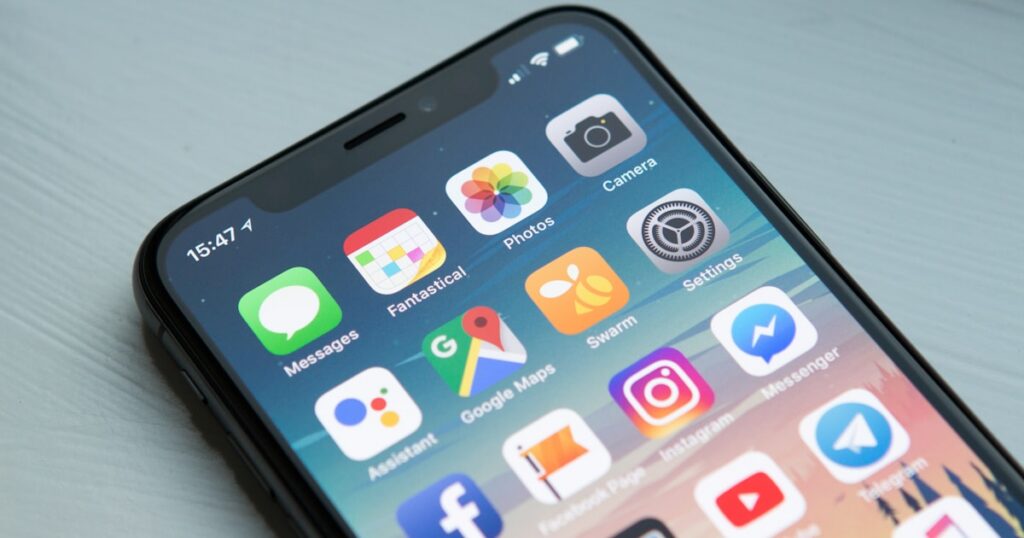
 If you’ve ever tried to open a photo from your iPhone on a Windows PC or upload it to a website, you know the frustration. The file is .heic, and nothing seems to handle it. Apple switched to HEIC (High Efficiency Image Container) back in 2017 with iOS 11 because it produces smaller files at roughly the same quality as JPG. Good for your phone storage, annoying for everything else.
I spent about two weeks testing every free HEIC to JPG converter I could find – online tools, desktop apps, built-in OS features. Some were fast, some were garbage, and a couple surprised me. Here’s what actually works in 2026.
Quick Comparison Table
| Tool | Type | Batch Support | Max File Size | EXIF Preserved | Cost |
|---|---|---|---|---|---|
| iLoveIMG | Online | Yes (up to 30) | 200 MB total | Yes | Free / $6/mo premium |
| CloudConvert | Online | Yes | 1 GB | Yes | 25 free/day |
| iMazing HEIC Converter | Desktop | Yes (unlimited) | No limit | Yes | 100% free |
| Convertio | Online | Yes (up to 10) | 100 MB | No | Free / $10/mo |
| FreeConvert | Online | Yes (up to 5) | 1 GB | Yes | Free / $15/mo |
| macOS Preview | Built-in | Yes | No limit | Yes | Free (Mac only) |
| GIMP | Desktop | No (manual) | No limit | Partial | Free, open source |
| HEIC to JPEG (Windows) | Desktop | Yes | No limit | Yes | Free |
Why HEIC Exists (and Why It’s a Problem)
HEIC uses the HEVC (H.265) codec to compress images. Apple’s reasoning was simple: same visual quality at about 50% the file size compared to JPG. A typical 12-megapixel iPhone photo takes up around 1.5-2.5 MB as HEIC versus 3-5 MB as JPG.
The problem is compatibility. Windows didn’t get native HEIC support until Windows 10 version 1809, and even then you might need to install the HEVC Video Extensions from the Microsoft Store (which costs $0.99). Most web browsers still can’t display .heic files directly. Social media platforms, email clients, WordPress uploads – they all choke on HEIC.
You could change your iPhone settings to capture in JPG instead (Settings > Camera > Formats > Most Compatible), but you’d lose the storage savings. Converting when you need to share makes more sense for most people.
If you also need to convert PNG to JPG, I covered that separately – some of the tools overlap.
1. iLoveIMG – Best for Quick Online Conversion
I keep coming back to iLoveIMG for one-off conversions. The interface is dead simple. Drop your HEIC files, click convert, download the JPGs. Done.
The free tier lets you convert up to 30 images at once with a total upload limit of 200 MB. For most people transferring a handful of iPhone photos, that’s plenty. Conversion speed averaged about 2-3 seconds per image in my testing, which is faster than most competitors.
One thing I appreciated: it preserves EXIF data by default. Your GPS coordinates, camera settings, timestamps – all intact in the output JPG. Some converters strip this, which is a pain if you organize photos by date or location.
What I liked: Fast, no registration required, batch processing works smoothly, and the output quality is hard to distinguish from the original.
What I didn’t: Ads on the free version are aggressive. The premium plan ($6/month) removes them and bumps the batch limit, but paying for HEIC conversion feels excessive when free alternatives exist.
2. CloudConvert – Best for Power Users
CloudConvert handles over 200 file formats, and HEIC to JPG is one of its strongest conversions. You get 25 free conversions per day without an account. That daily reset is generous compared to tools that give you a lifetime cap.
The standout feature is the settings panel. You can adjust JPG quality (1-100), set specific dimensions, and even strip or preserve metadata per conversion. Most online tools give you zero control over output quality. CloudConvert lets you decide if you want a 95% quality JPG or a compressed 70% version.
Processing speed was good – about 4 seconds per file on average, slightly slower than iLoveIMG but still reasonable.
What I liked: Granular quality control, 1 GB max file size, API available if you want to automate conversions.
What I didn’t: The 25/day limit can feel tight if you’re converting a large photo library. Paid plans start at $9 for 500 conversion minutes.
3. iMazing HEIC Converter – Best Free Desktop App
This one is genuinely, completely free. No trial period, no watermarks, no feature gates. iMazing (the company behind it) makes money from their full iOS management suite and offers the HEIC converter as a standalone freebie.
Available for both Windows and Mac. You drag files or entire folders onto the window, pick JPG or PNG as output, choose quality level, and hit convert. I threw 500+ HEIC files at it in one batch and it processed them in about 90 seconds. No online tool comes close to that speed for large batches.
EXIF data is preserved. Output quality at the default setting is nearly identical to the source. The app is lightweight (about 15 MB installed) and doesn’t phone home or require an internet connection.
What I liked: Truly unlimited batch conversion, offline processing, no account needed, small install footprint.
What I didn’t: The interface is basic – no preview, no crop, no resize. It does one thing. But honestly, that’s fine for a converter.
4. Convertio – Solid but Limited on Free
Convertio is one of the most well-known online converters, and it handles HEIC to JPG without issues. The interface is clean, and you can upload from your computer, Google Drive, Dropbox, or via URL.
Here’s the thing though – the free tier only allows 10 conversions per 24 hours, and max file size is 100 MB. For an online tool that strips EXIF data from converted files (at least on the free plan), those limits feel restrictive. Paid plans start at $10/month.
Conversion quality was fine. Speed averaged about 5 seconds per file. Nothing to complain about on the output side.
What I liked: Cloud storage integration, clean UI, consistent output quality.
What I didn’t: 10-file daily cap on free, EXIF stripping, and the premium pricing is steep for what you get. Other tools on this list do the same job with better limits.
5. FreeConvert – Generous File Size Limit
FreeConvert’s selling point is the 1 GB max file size on the free tier. That’s unusual for an online converter. If you have a massive HEIC file (maybe from a ProRAW capture or a Live Photo export), this is probably the only free online tool that won’t reject it.
You can convert up to 5 files simultaneously, which is the lowest batch limit on this list. But each file can be huge, so it balances out if your use case is a few large files rather than many small ones.
The advanced settings let you adjust quality, resize, and even apply basic effects during conversion. I mostly ignored the effects – if I need editing, I’ll use a proper tool. But the quality slider is useful.
What I liked: Huge file size allowance, quality adjustment options, files auto-delete after 2 hours.
What I didn’t: Only 5 files at a time, interface is cluttered with upsell prompts, and conversion was the slowest in my testing at about 7-8 seconds per file.
6. macOS Preview – Already On Your Mac
If you’re on a Mac, you might not need any third-party tool at all. Preview, the built-in image viewer, handles HEIC natively and can export to JPG.
Open the HEIC file in Preview, go to File > Export, select JPEG from the format dropdown, adjust the quality slider, and save. For batch conversion, select multiple files in Finder, right-click, Open With > Preview, then File > Export Selected Images.
I converted 50 files this way in about 40 seconds. No upload, no download, no privacy concerns. The quality is excellent because macOS has native HEVC support.
The batch workflow is slightly clunky compared to a dedicated app, but for occasional conversions it works perfectly well and you’re not installing anything.
What I liked: Zero install, completely private, excellent output quality, batch support through the Export Selected Images feature.
What I didn’t: Mac only, obviously. The batch workflow could be more intuitive – it’s not immediately obvious that you need to select images in Finder first.
7. GIMP – If You Need Editing Too
GIMP (GNU Image Manipulation Program) is a free, open-source image editor that’s been around forever. It added HEIC support a few versions back, and now you can open .heic files directly and export them as JPG.
I wouldn’t recommend GIMP purely for HEIC conversion. It’s overkill. Loading a full image editor to change a file format is like driving a truck to the corner store. But if you already use GIMP for photo editing, it’s nice to know it handles HEIC without plugins.
One note: GIMP partially strips EXIF data during export. GPS coordinates and some camera info may not carry over, depending on your export settings. Check the “Save EXIF data” option in the export dialog if this matters to you.
What I liked: Free, open source, available on Windows/Mac/Linux, and you can edit the image before exporting.
What I didn’t: Slow to load (10+ seconds to open), no batch conversion without scripting, EXIF handling is inconsistent.
8. HEIC to JPEG (Microsoft Store) – Quick Windows Fix
For Windows users who want a simple local app, “HEIC to JPEG” by JEEC Studio is available free on the Microsoft Store. It’s lightweight, offline-capable, and handles batch conversion well.
The app creates a right-click context menu entry, so you can select multiple .heic files in File Explorer, right-click, and choose “Convert to JPEG.” The converted files land in the same folder. I processed 200 files in about 45 seconds.
EXIF data is preserved. Quality is consistent. The only downside is that you can’t adjust the output quality level – it defaults to high quality JPG, which is fine for most uses but not ideal if you need smaller file sizes.
What I liked: Right-click integration with Windows Explorer, fast batch processing, fully offline.
What I didn’t: No quality control, only outputs JPG (no PNG option), and the developer’s other apps are ad-supported.
Which Tool Should You Use?
It depends on how many files you’re converting and whether you want to stay online or install something.
For occasional online conversion (1-30 files): iLoveIMG. Fastest, simplest, preserves metadata.
For regular offline conversion (any number of files): iMazing HEIC Converter. Completely free, no limits, fast batch processing.
For Mac users: Start with Preview. If you need more control or larger batches, then install iMazing.
For Windows users who want right-click integration: HEIC to JPEG from the Microsoft Store.
If you need to process a lot of images after conversion, check out our roundup of free batch image resizers and free image compressors to optimize file sizes further.
How to Stop Your iPhone from Shooting HEIC
If you’d rather avoid the conversion step entirely, you can tell your iPhone to capture in JPG:
1. Open Settings on your iPhone
2. Scroll down to Camera
3. Tap Formats
4. Select Most Compatible
This switches capture format from HEIC to JPG. Your photos will be roughly twice as large, so keep an eye on storage if you take a lot of pictures. Most people with 128 GB or more won’t notice the difference.
There’s also a middle ground: keep shooting in HEIC but enable automatic conversion on transfer. Go to Settings > Photos > Transfer to Mac or PC > Automatic. This converts to JPG when you AirDrop or USB-transfer photos to a computer. The original HEIC stays on your phone.
Frequently Asked Questions
Is HEIC better quality than JPG?
At the same file size, yes. HEIC uses more efficient compression (HEVC/H.265) compared to JPG’s older JPEG compression. A 2 MB HEIC file will typically look slightly sharper than a 2 MB JPG file, especially in areas with gradients or fine detail. When you convert HEIC to JPG at high quality (90%+), the visual difference is nearly impossible to spot without zooming in to 200% or more.
Does converting HEIC to JPG lose quality?
There’s always some quality loss when converting between lossy formats. HEIC is lossy, JPG is lossy, so you’re re-compressing already-compressed data. In practice, if you export at 90-95% quality, the degradation is minimal and invisible in normal viewing conditions. I compared converted files side-by-side with originals at 100% zoom and couldn’t tell them apart for typical photos.
Can I convert HEIC to JPG on Windows without installing anything?
Sort of. Windows 10 and 11 can display HEIC files if you install the free “HEIF Image Extensions” from the Microsoft Store (plus the $0.99 HEVC Video Extensions in some cases). Once installed, you can open HEIC files in the Photos app and use “Save as” to export as JPG. It’s not ideal for batch conversion, but it works for single files without a third-party app.
Are online HEIC to JPG converters safe for private photos?
Reputable tools like iLoveIMG and CloudConvert state they delete uploaded files within a few hours. But you are uploading your photos to someone else’s server. For sensitive or private images, I’d recommend using a desktop tool like iMazing HEIC Converter or macOS Preview – your files never leave your computer. If privacy matters, offline conversion is the safer choice.
How do I batch convert hundreds of HEIC files to JPG?
For large batches (100+ files), desktop tools are your best option. iMazing HEIC Converter handles unlimited files and processed 500 photos in about 90 seconds in my testing. On Mac, you can also use the Terminal command: sips -s format jpeg *.heic --out output_folder/ which converts all HEIC files in a folder to JPG in seconds.