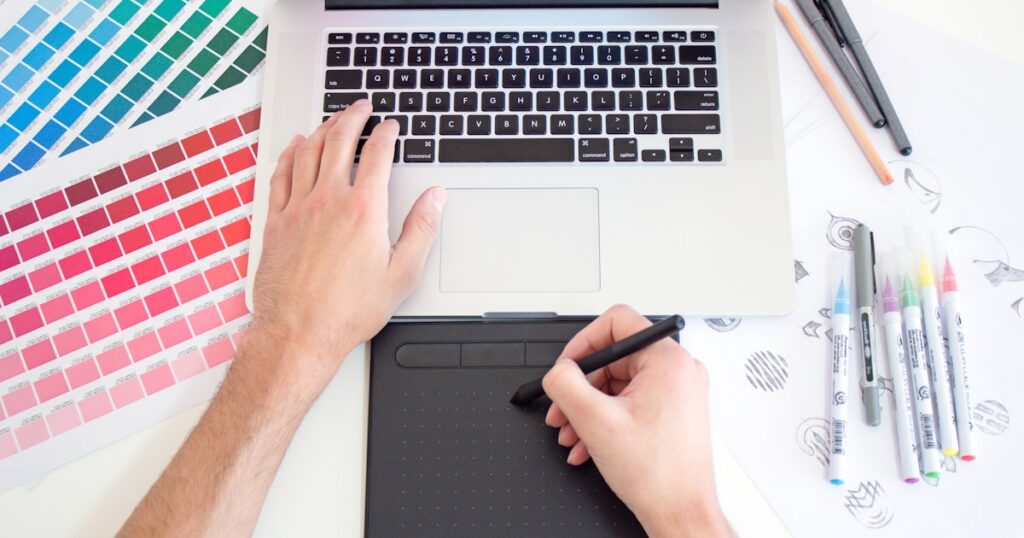
I spent the better part of three weeks testing over 25 free and budget-friendly image editors. The goal was simple: find tools that can genuinely replace Photoshop for most people. Not everyone needs a $22.99/month subscription, and honestly, some of these alternatives surprised me with how far they’ve come. If you’re also exploring options, check out my roundups of the best free design tools and best free photo editors for even more picks.
Quick Comparison: 9 Best Free Photoshop Alternatives
| Tool | Best For | Platform | Price | Rating |
|---|---|---|---|---|
| GIMP | Full Photoshop replacement | Windows, Mac, Linux | Free | 4.5/5 |
| Photopea | Browser-based PSD editing | Web (any browser) | Free (Premium $5/mo) | 4.6/5 |
| Krita | Digital painting and illustration | Windows, Mac, Linux | Free | 4.4/5 |
| Paint.NET | Quick edits on Windows | Windows | Free | 4.2/5 |
| Pixlr | Fast online photo editing | Web, iOS, Android | Free (Premium $4.90/mo) | 4.0/5 |
| Canva | Social media graphics | Web, Desktop, Mobile | Free (Pro $12.99/mo) | 4.3/5 |
| Affinity Photo 2 | Professional photo editing | Windows, Mac, iPad | $69.99 one-time | 4.7/5 |
| Darktable | RAW photo processing | Windows, Mac, Linux | Free | 4.3/5 |
| RawTherapee | Advanced RAW development | Windows, Mac, Linux | Free | 4.1/5 |
1. GIMP – The Open-Source Powerhouse
GIMP has been the go-to free Photoshop alternative for over two decades, and version 2.10.38 (the latest stable release as of early 2026) shows why it’s still here. It supports layers, masks, channels, customizable brushes, paths, and basically every feature you’d expect from a professional image editor. The plugin ecosystem is massive – over 900 plugins available through the GIMP Plugin Registry and community repos.
Where GIMP Actually Shines
Batch processing through Script-Fu and Python-Fu is something even Photoshop users envy. I automated resizing and watermarking 200+ product photos in about 15 minutes with a simple script. The color management tools handle ICC profiles properly, CMYK conversion works through a plugin, and you get full 32-bit floating point precision for high-end work.
PSD file support is solid. Not perfect – some complex layer effects don’t translate 1:1 – but for 90% of PSD files I threw at it, everything came through intact. GIMP also reads and writes to over 40 file formats natively.
The Downsides
The interface. Look, they’ve improved it significantly since the old floating-window days, but it still feels clunky compared to Photoshop’s polish. Non-destructive editing is limited (adjustment layers aren’t fully there yet), and the learning curve is steeper than it should be. If you need to remove backgrounds from images, GIMP can do it, but dedicated tools are faster.
Best for: Power users who want a full-featured desktop editor and don’t mind investing time to learn it.
2. Photopea – Photoshop in Your Browser
This one blew me away. Photopea is a browser-based editor built by a single developer (Ivan Kutskir) that replicates Photoshop’s interface so closely it feels like a clone. No download, no installation, no account required. Just open the site and start editing.
Here’s the thing – Photopea handles PSD, XCF, Sketch, XD, and CDR files natively. I opened a 450MB PSD file with 30+ layers, and it loaded in about 12 seconds on a mid-range laptop. Layer styles, smart objects, adjustment layers, pen tool, healing brush – it’s all here. The free version shows ads on the right sidebar, which you can remove for $5/month.
Performance depends on your browser and RAM. With 8GB of RAM, I could comfortably work on files up to about 4000×4000 pixels. Push beyond that and things slow down. The tool supports over 40 file formats for import and export, and everything happens locally in your browser – your files never touch Photopea’s servers.
I kept coming back to Photopea during testing. When I needed a quick edit on a Chromebook or someone else’s computer, it was the obvious choice. The keyboard shortcuts even match Photoshop’s defaults.
Limitation: Heavy files (100+ layers, large canvases) can make your browser struggle. No offline mode unless you use a PWA workaround.
Best for: Anyone who wants the closest Photoshop experience without paying or installing anything.
3. Krita – For Artists Who Paint
Krita isn’t trying to be Photoshop. It’s a digital painting application first, and it’s excellent at that job. The brush engine is arguably better than Photoshop’s for illustration work, with over 100 professionally designed brush presets out of the box and a brush customization system that lets you tweak every parameter imaginable.
The Brush Engine
Nine different brush engines: pixel, color smudge, shape, sketch, hairy, chalk, spray, particle, and quick line. Each handles tablet input with up to 8192 levels of pressure sensitivity. I tested it with a Wacom Intuos Pro and an XP-Pen Artist 24 – both worked with zero lag at canvas sizes up to 8000×8000 pixels.
Krita also includes animation tools. Frame-by-frame animation with onion skinning, a timeline docker, and export to MP4 or GIF. Not After Effects, but for simple 2D animation it works.
For photo editing specifically, Krita falls short. The selection tools are basic compared to GIMP or Photopea, there’s no content-aware fill, and color correction tools are minimal. If you want to retouch portraits or do product photography edits, pick a different tool from this list.
Best for: Digital artists, illustrators, and concept designers who need a free painting application with professional brush tools.
4. Paint.NET – Lightweight and Fast
Sometimes you just need to crop an image, adjust brightness, add some text, and move on with your day. Paint.NET is built for that. It launches in under 2 seconds on any modern Windows machine, uses about 60MB of RAM with a standard image open, and doesn’t try to overwhelm you with features you’ll never use.
Don’t confuse simple with weak, though. Paint.NET supports layers, blending modes, and a surprisingly capable effects library. The plugin community has created over 300 additional effects and file format plugins. I use it for quick screenshot annotations and simple compositing where opening GIMP would be overkill.
The main limitation: Windows only. No Mac, no Linux, no browser version. You won’t find frequency separation, luminosity masks, or advanced color grading here either.
Best for: Windows users who need a fast, simple editor for everyday tasks.
5. Pixlr – Quick Edits Without the Fuss
Pixlr offers two web-based editors: Pixlr X (simplified) and Pixlr E (advanced, Photoshop-like). The free tier gives you both with ads and a limit of 3 saved projects. Honestly, for one-off edits, more than enough.
AI Features Worth Mentioning
Pixlr has leaned hard into AI tools in 2025-2026. The background remover works surprisingly well on product photos – I tested it on 20 images with varying complexity and got clean cutouts on 16 of them without manual touch-up. The AI image generator is serviceable but nothing special compared to dedicated AI photo editors.
The free version caps exports at 2048×2048 pixels. For social media graphics, that’s fine. For print work, you’ll need the Premium plan at $4.90/month or switch to a desktop app. Template selection is decent but smaller than Canva’s library.
Best for: Quick web-based edits when you don’t want to open a full application.
6. Canva
Canva isn’t really a Photoshop alternative in the traditional sense – it’s a design platform. But so many people use it as their primary image editor that leaving it out felt wrong.
Canva’s free tier includes over 250,000 templates, 1 million+ stock photos, and 5GB of cloud storage. The drag-and-drop interface makes creating social media posts and marketing materials genuinely easy. You can learn the basics in about 10 minutes.
Where it falls apart is precision work. No pen tool, no layer masks, no channel manipulation. Try to create a complex photo composite and you’ll hit walls everywhere. The background remover is Pro-only ($12.99/month), and even then it struggles with complex edges like hair.
For a related resource on design tools that go beyond basic editing, see my list of free design tools.
Limitation: Not a real photo editor. Great for design, weak for photo manipulation.
Best for: Non-designers who need to create social media graphics, presentations, or marketing materials quickly.
7. Affinity Photo 2 – The Premium Pick
Affinity Photo 2 isn’t free. But at $69.99 one-time (no subscription, ever), it costs less than four months of Photoshop. I’m including it because if you have the budget, this is the strongest Photoshop competitor available today.
The feature list reads like Photoshop’s: full RAW development, HDR merge, focus stacking, panorama stitching, frequency separation, non-destructive adjustment layers, live filter layers, PSD support, and CMYK workflow. Performance is excellent – Metal on Mac and DirectX on Windows for GPU acceleration, and it handled a 1.2GB TIFF file without issues during my testing.
What Sets It Apart
Three built-in personas (workspaces) let you switch between Photo, Liquify, and Develop modes. The Develop persona is basically a Lightroom-grade RAW processor built right into the app. Macro recording lets you automate repetitive tasks, and batch processing handles hundreds of files efficiently.
The one-time purchase model is a huge selling point. You buy it once, you own it. Updates within the same major version are free. Serif has maintained this pricing since 2015 and explicitly stated they won’t switch to subscriptions.
The downside? Plugin ecosystem is tiny compared to Photoshop. No equivalent of the massive third-party filter market. Actions/macros from Photoshop don’t transfer. And if you’re deeply embedded in Adobe’s ecosystem, switching just Photo won’t eliminate your subscription anyway.
Best for: Professional and serious hobbyist photographers who want a one-time purchase alternative to Photoshop with minimal compromises.
8. Darktable – Lightroom’s Free Rival
Darktable is a photography workflow application and RAW developer. Think of it as the free alternative to Lightroom rather than Photoshop. But since many people use Photoshop primarily for RAW processing and color grading, Darktable earns its spot here.
It supports over 600 camera RAW formats. The processing pipeline uses 32-bit floating point throughout, and the color management handles wide gamut displays and soft proofing for print. You get 80+ processing modules covering exposure, tone mapping, color balance, noise reduction, lens correction, and more.
The masking system is powerful – parametric masks based on luminosity, color, or any channel, combined with drawn masks. I used this to selectively edit skies in landscape photos without touching the foreground.
Not gonna lie, the learning curve is steep. The interface is dense, the terminology can be confusing, and the documentation still assumes you know color science basics. But once you get past the initial confusion, Darktable produces results that match Lightroom’s output.
Best for: Photographers who shoot RAW and want a free, non-destructive photo workflow manager.
9. RawTherapee – Maximum RAW Control
RawTherapee and Darktable often get compared, and for good reason – both are free, open-source RAW processors. RawTherapee takes a slightly different approach, offering even more granular control over the demosaicing and RAW decoding process.
The detail extraction is exceptional. Multiple demosaicing algorithms (AMaZE, LMMSE, IGV, and more) produce subtly different results depending on sensor and ISO. For high-ISO images from older cameras, switching algorithms can noticeably reduce noise while preserving detail. This level of control doesn’t exist in Lightroom or Darktable.
Batch processing works through processing profiles – create a profile with your preferred settings and apply it to hundreds of images. The queue processes files in the background while you keep editing. Export options include TIFF (8/16/32-bit), JPEG, and PNG.
The main drawback: no library management. RawTherapee is purely an editor – no tagging, no collections, no map view. You’ll need a separate tool to organize your photo library.
Best for: Technical photographers who want maximum control over RAW processing and don’t mind a steeper learning curve.
How I Tested These Tools
Every tool went through the same practical tests over three weeks in early 2026. I used a Windows 11 desktop (Ryzen 7 5800X, 32GB RAM, RTX 3070) and a MacBook Air M2 for desktop apps. Web-based tools were tested in Chrome and Firefox on both machines plus a Chromebook with 8GB RAM.
My test suite included: opening five PSD files of varying complexity, processing 20 RAW files from different cameras (Canon R6, Sony A7IV, Fuji X-T5), performing common tasks like background removal, skin retouching, and color grading, and measuring launch time, memory usage, and export speed. I also tracked workflow speed – a tool that buries features behind five submenus gets a lower score than one that puts them front and center.
For a deeper look at free photo editors beyond Photoshop alternatives specifically, I’ve tested those separately with a focus on ease of use rather than professional features.
Frequently Asked Questions
Is GIMP really as good as Photoshop?
For about 80% of what most people do in Photoshop, yes. GIMP handles layers, masks, retouching, compositing, and batch processing well. Where it falls behind is non-destructive editing, CMYK workflow (requires plugins), and AI-powered tools (Photoshop’s generative fill has no equivalent). If you’re a professional designer sharing PSD files with a team daily, GIMP will create friction. For personal projects or freelance work, it handles the job.
What is the best free Photoshop alternative for beginners?
Photopea. It runs in your browser, requires no installation, and mirrors Photoshop’s interface closely enough that any Photoshop tutorial on YouTube will work almost step-for-step. There’s no commitment – just open the website and start editing. If you specifically want a desktop application, Paint.NET is the simplest option for Windows users. For a broader selection of beginner-friendly options, see my roundup of free photo editors.
Can I open PSD files without Photoshop?
Yes, several tools handle PSD files well. Photopea has the best PSD compatibility of any free tool – it reads and preserves layer styles, smart objects, adjustment layers, and text layers. GIMP opens PSDs but may flatten some effects. Affinity Photo 2 also has strong PSD support. Krita can open PSD files but occasionally misreads blending modes. For simple viewing without editing, even Google Drive can preview PSD files.
Is Photopea safe to use?
Yes. Photopea processes all files locally in your browser – your images never leave your computer. The application is maintained by Ivan Kutskir, a solo developer based in the Czech Republic, since 2013. The free version is ad-supported, and premium removes ads. No account required, no file storage on their servers, no personal data collection beyond standard analytics.
Do free Photoshop alternatives support RAW files?
Some do, some don’t. Darktable and RawTherapee are dedicated RAW processors with 600+ camera format support. GIMP opens RAW files through its UFRaw plugin or via Darktable as an external editor. Photopea supports some RAW formats (CR2, NEF, ARW) but with limited controls. Krita has basic RAW support. Paint.NET, Pixlr, and Canva don’t handle RAW files natively.