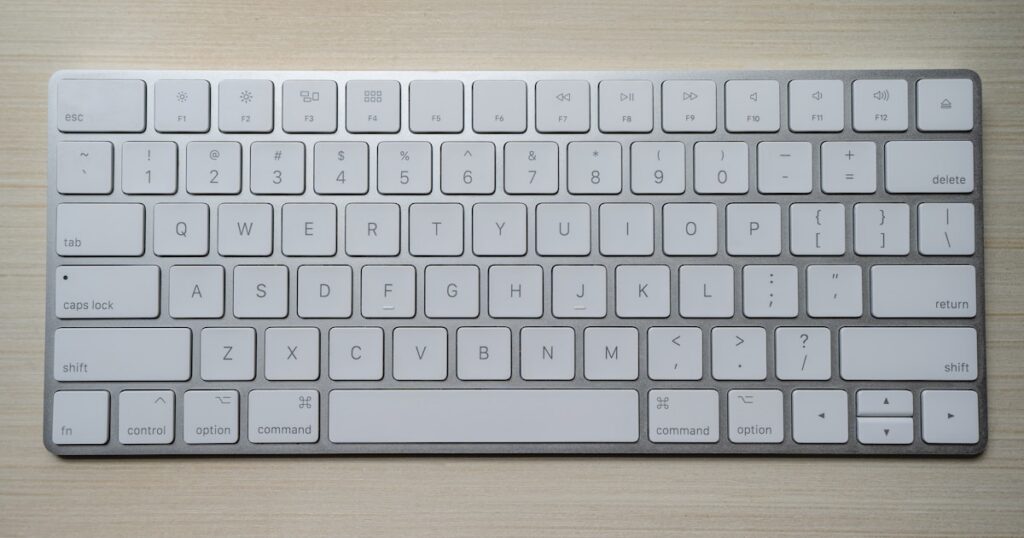
I’ve spent the last month rotating between eight different typing tutors, doing at least 20 minutes on each one daily. Some of them felt like homework from 2005. Others genuinely made me faster.
My baseline was 72 WPM when I started. After four weeks of deliberate practice across these tools, I’m hitting 89 WPM consistently. Not all of that improvement came from one tool – but I can tell you exactly which ones moved the needle and which were a waste of time.
Here’s what I found after testing every major free typing tutor available in 2026.
Quick Comparison Table
| Tool | Best For | Lessons | Games/Races | Analytics | Cost |
|---|---|---|---|---|---|
| TypingClub | Beginners | 600+ | Yes | Detailed | Free (Pro $7.99/mo) |
| Keybr | Weak-key drilling | Adaptive | Multiplayer | Excellent | 100% Free |
| Monkeytype | Speed building | No structured | No | Best-in-class | 100% Free |
| TypeRacer | Competitive practice | No | Live racing | Basic | Free (Plus $8/mo) |
| Ratatype | Group learning | 15 courses | Speed test | Good | Free (Pro $5/mo) |
| Typing.com | Schools/kids | Hundreds | Yes | Teacher tools | Free (Premium $45/yr) |
| 10FastFingers | Quick speed tests | No | Competitions | Basic | 100% Free |
| GNU Typist (gtypist) | Terminal/Linux users | Multiple | No | Minimal | 100% Free (open source) |
TypingClub – Best Structured Course for Beginners
TypingClub has over 600 lessons that take you from “where is the F key” to typing full paragraphs with punctuation and numbers. The progression feels genuinely thought-out. You don’t just randomly practice keys – there’s a curriculum behind it.
What sold me: the animated hand guide that shows exactly which finger should press which key. It sounds basic, but when you’re retraining muscle memory, having that visual anchor matters more than you’d expect. I caught myself using my index finger for keys that should be ring finger territory, and the guide called me out on it every time.
The free tier gives you access to all lessons but shows ads between sessions. Not the worst trade-off, honestly. The Pro version at $7.99/month removes ads and adds more detailed reports, but the free version covers everything you need to go from zero to functional touch typist.
What I liked
- 600+ structured lessons with clear progression
- Visual finger guides that correct bad habits
- Gamification that doesn’t feel forced – star ratings, badges
- Works entirely in the browser, nothing to install
What could be better
- Ads on free tier pop up between every few lessons
- No dark mode on the free version
- Lesson variety drops off in the later stages – lots of repetition
If you’re starting from scratch or trying to fix years of bad typing habits, TypingClub is where I’d point you first. Spend 2-4 weeks here, then graduate to something like Keybr or Monkeytype.
Keybr – Best Adaptive Algorithm for Targeting Weak Spots
Keybr does something genuinely clever. Instead of following a fixed lesson plan, it uses an algorithm that figures out which keys slow you down and feeds you more words containing those letters. The more you struggle with a particular key, the more it shows up.
I discovered I was weirdly slow at typing the letter “v” – something I never would have noticed on my own. After a few sessions where Keybr hammered me with v-heavy words, my accuracy on that key went from 88% to 97%.
The analytics here are outstanding for a free tool. You get per-key breakdowns showing speed and accuracy, a typing speed chart over time, and heat maps of your keyboard. It’s the kind of data you’d expect from a paid app.
What I liked
- Adaptive algorithm that actually works – you can feel yourself improving on weak keys
- Per-key analytics with speed and accuracy breakdowns
- Multiplayer mode for racing against other users in real-time
- Completely free with no feature gating
- Open source
What could be better
- No structured curriculum – you need to already know the basics
- Generated words are often nonsensical, which can feel weird
- Interface is functional but looks dated
Keybr is the tool I kept coming back to the most. Once you know basic touch typing, this is the fastest way to patch up your specific weaknesses. I’d use it alongside a more traditional tutor, not as your first stop.
Monkeytype – Best for Speed Freaks and Data Nerds
Look, if you’ve spent any time in typing communities on Reddit, you already know about Monkeytype. It’s become the de facto standard for serious typists. And for good reason.
The customization is absurd. You can set test duration (15s, 30s, 60s, 120s, or custom), choose between random words, quotes, or custom text, adjust smoothness settings for the cursor, pick from dozens of themes, and configure whether you want live WPM display or not. There are people who spend more time tweaking Monkeytype settings than actually typing.
Here’s the thing though – Monkeytype isn’t a tutor. It doesn’t teach you anything. There are no lessons, no finger guides, no progression system. It’s a typing test platform with exceptional analytics. You take tests, review your stats, and practice. That’s it.
My favorite feature: the detailed results screen after each test. You see WPM over time within the test, raw vs adjusted speed, consistency percentage, and character-level error analysis. After a 60-second test you get more data than some apps give you after a full lesson.
What I liked
- Minimalist, distraction-free interface with lots of themes
- Best-in-class analytics – WPM tracking, consistency, per-character breakdowns
- Extremely customizable – test length, word sets, language, punctuation
- Active community and regular updates
- 100% free, open source, no accounts required
What could be better
- Zero teaching component – useless if you can’t already touch type
- Can become addictive in an unproductive way (chasing PBs instead of practicing weak areas)
- Account needed to save history, though it’s free
If you already type 40+ WPM and want to get faster, Monkeytype is the tool. If you’re below that, you’ll just be reinforcing whatever bad habits you currently have. Learn proper form first, then come here.
TypeRacer – Best for Competitive Motivation
TypeRacer turns typing practice into a multiplayer racing game. You type a passage, your car moves forward, and you race against other people doing the same thing in real-time. It’s a simple concept that works annoyingly well for motivation.
I say “annoyingly” because I planned to test TypeRacer for 20 minutes and ended up spending two hours racing strangers on a Tuesday night. The competitive element hits different when you can see the other person’s car inching ahead of yours because you fumbled a semicolon.
The passages come from books, movies, and songs, which makes it more interesting than typing random words. You might get a paragraph from “1984” followed by a Kanye lyric. It keeps things unpredictable.
One downside: the free version limits you to a certain number of races per day and shows ads. The Plus subscription ($8/month) removes limits and gives you access to practice mode with custom texts. For casual use, the free tier is fine.
What I liked
- Real-time multiplayer racing – genuinely motivating
- Real text passages from books, movies, songs
- Global leaderboards and ranking system
- Simple enough that anyone can jump in immediately
What could be better
- Free tier has race limits and ads
- Analytics are bare-bones compared to Monkeytype
- Some passages have unusual punctuation that feels unfair in a race
- No teaching component whatsoever
TypeRacer is the gym buddy of typing tools. It doesn’t teach you form, but it makes you show up consistently. Pair it with something that actually teaches technique and you’ve got a solid combo. If you’re interested in other productivity tools to complement your practice, we’ve covered those separately.
Ratatype – Best for Group Learning and Certification
Ratatype takes a more traditional approach. It offers 15 structured typing courses organized by difficulty, with a curriculum that covers everything from home row basics to advanced speed drills. Nothing revolutionary in the teaching method, but it’s solid and thorough.
The unique angle here is the group feature. You can create or join groups where everyone’s progress is visible. Teachers use this for classrooms. Managers use it for teams. I joined a random public group to test it, and honestly, seeing other people’s daily practice streaks made me practice more consistently. Social pressure works.
Ratatype also offers a typing certificate once you pass their speed test at 45+ WPM with 96%+ accuracy. Is a typing certificate from Ratatype going to get you a job? No. But it’s a nice milestone marker.
What I liked
- Clean, modern interface that’s pleasant to use
- Group features for accountability and social practice
- Free typing certificates (neat for students)
- 15 structured courses covering different skill levels
What could be better
- Pro features locked behind $5/month subscription
- Course content feels generic – no adaptive difficulty
- Limited customization compared to Monkeytype
Typing.com – Best for Schools and Kids
Typing.com is clearly built for educational settings. It has teacher dashboards, classroom management tools, student progress tracking, and lesson plans aligned with curriculum standards. If you’re a teacher looking for a typing tutor for your class, this is the obvious pick.
For individual adults? It works, but you’ll feel like you’re using something designed for 12-year-olds. The lessons use simple vocabulary, the games are kid-friendly, and the interface has that “educational software” aesthetic. None of that is a problem if you’re a parent looking for something for your child, or a teacher setting up a computer lab.
The free tier is generous – full access to all lessons and most games. The Premium plan ($45/year for teachers) adds extra features like custom lesson creation, ad removal, and advanced reporting. For students, everything important is free.
What I liked
- Excellent teacher/classroom management tools
- Hundreds of lessons with clear progression
- Typing games that kids actually enjoy
- Generous free tier for students
- Digital citizenship lessons bundled in
What could be better
- Not designed for adults – the tone and content skew young
- Games can distract from actual practice
- Interface feels cluttered with educational extras
If you’re setting up typing practice for a classroom or your kids, Typing.com is the answer. For adults, look elsewhere unless you don’t mind the kiddy vibe.
10FastFingers – Best for Quick Speed Tests
10FastFingers keeps things dead simple. You get a one-minute typing test with random common words, and at the end it tells you your WPM, accuracy, and how you rank against other users globally.
There’s no lesson structure, no progression system, no hand guides. You type, you get a number, you try again. That’s the whole thing. And sometimes that’s exactly what you want. When I needed a quick 60-second check on whether my speed was actually improving, 10FastFingers was my go-to because there’s zero friction between opening the page and starting a test.
They also run typing competitions where users compete on custom word lists. The community is active and surprisingly competitive – top speeds in some competitions reach 180+ WPM, which is borderline inhuman.
What I liked
- Instant one-minute speed tests with zero setup
- Multilingual support – 50+ languages available
- Community competitions with leaderboards
- Custom typing tests where you can paste your own text
What could be better
- No teaching features at all
- Analytics are surface-level – WPM, accuracy, that’s about it
- Website design looks like it hasn’t changed since 2012
- Ad-heavy on free tier
GNU Typist (gtypist) – Best for Terminal and Linux Users
This one’s a wildcard pick. GNU Typist is a command-line typing tutor that runs in your terminal. It’s been around since the 90s and it’s still maintained. If you live in the terminal anyway – developers, sysadmins, Linux enthusiasts – this fits right into your workflow.
Install it with sudo apt install gtypist on Debian/Ubuntu or brew install gtypist on macOS, and you’re running typing lessons without ever opening a browser. The lessons cover QWERTY, Dvorak, and Colemak layouts, which is a nice touch. Most web-based tutors only support QWERTY.
Not gonna lie, it’s bare-bones. No graphics, no games, no analytics dashboards. Just text on a screen and your fingers. But there’s something meditative about practicing typing in a terminal with no distractions. If that sounds appealing, you’ll love it. If it sounds miserable, skip it.
What I liked
- Runs in terminal – no browser, no distractions
- Supports QWERTY, Dvorak, and Colemak layouts
- Open source and completely free
- Works offline – no internet needed
- Tiny install footprint
What could be better
- No analytics beyond pass/fail on lessons
- Text-only interface won’t appeal to most people
- Lesson content is dated
- No adaptive difficulty
For developers who want to improve their typing without leaving the terminal, gtypist is a niche but effective option. Everyone else should stick to the browser-based tools above.
How I’d Combine These Tools (My Recommended Practice Routine)
After spending a month with all of these, here’s what actually worked for me:
Weeks 1-2 (learning proper form): TypingClub for 20 minutes daily. Focus on accuracy, not speed. I dropped from 72 WPM to about 55 WPM during this phase because I was retraining finger placement. That’s normal and expected.
Weeks 3-4 (building speed): Keybr for 10 minutes to warm up and drill weak keys, then Monkeytype 60-second tests for another 10 minutes. Track your daily average WPM.
Ongoing (maintaining and improving): Monkeytype as a daily warm-up (5 minutes), TypeRacer when you want to push yourself competitively, and Keybr whenever you notice specific keys slowing you down.
The total daily commitment? About 15-20 minutes. That’s enough to see real progress. Going beyond 30 minutes per day showed diminishing returns in my testing – your fingers get fatigued and your accuracy drops, which means you’re practicing mistakes.
What About Paid Alternatives?
I’ve tested premium typing tutors like KAZ Typing, Typesy, and Mavis Beacon (yes, it still exists). Honestly, none of them offered enough over the free options to justify the price. The gap between free and paid typing tutors has closed almost completely.
The one exception: if you need typing tutors for a business with 50+ employees and need centralized management, compliance reporting, and IT admin features, something like Typesy Business Edition makes more sense. For individual use? Save your money.
Typing Speed Benchmarks – Where Do You Stand?
| WPM Range | Level | What It Means |
|---|---|---|
| 0-25 WPM | Beginner | Hunt-and-peck typing. Start with TypingClub. |
| 25-40 WPM | Below average | You know the keyboard but aren’t touch typing. TypingClub or Ratatype will help. |
| 40-60 WPM | Average | Functional for most jobs. Keybr to fix weak spots, Monkeytype to push higher. |
| 60-80 WPM | Above average | Faster than most office workers. Monkeytype and TypeRacer territory. |
| 80-100 WPM | Fast | Top 10% of typists. Focus on consistency and accuracy at this point. |
| 100+ WPM | Very fast | Professional level. Diminishing returns from practice – you’re already excellent. |
The average office worker types around 40 WPM. Getting to 60 WPM – which most people can achieve in a month of practice – saves roughly 30 minutes per day if you spend a lot of time writing emails and documents. Over a year, that’s about 180 hours. If you’re someone who relies on grammar checkers or AI writing tools, faster typing means you can iterate on drafts more quickly too.
FAQ
What is the best free typing tutor for beginners?
TypingClub is the best option for absolute beginners. It starts with home row basics and slowly adds keys over 600+ lessons. The visual hand guides and real-time feedback make it easy to build proper habits without paying anything.
Can I actually learn touch typing for free?
Yes. Tools like TypingClub, Keybr, and Ratatype offer full typing courses at no cost. Most people reach 40-50 WPM within 2-4 weeks of daily 15-minute practice sessions using these free platforms.
How long does it take to learn touch typing?
With consistent daily practice of 15-20 minutes, most people can reach 40 WPM in about 2-3 weeks. Getting to 60-80 WPM typically takes 2-3 months. Professional-level speed above 100 WPM can take 6-12 months of dedicated practice.
Is Monkeytype better than TypeRacer for improving speed?
They serve different purposes. Monkeytype is better for solo practice with detailed analytics and customizable tests. TypeRacer is better for motivation through real-time competitive racing against other people. Using both is a solid combo – Monkeytype for focused drills, TypeRacer when you want a challenge.
Do typing tutors actually help, or should I just practice typing?
Typing tutors help significantly more than random practice, especially for beginners. Unstructured typing reinforces bad habits like hunting and pecking. A structured tutor forces proper finger placement and progressively introduces keys. Once you’re above 50 WPM with good form, switching to tools like Monkeytype or TypeRacer for speed building makes sense.