Choosing the wrong team communication platform is like building your office on quicksand. You’ll feel the cracks eventually-missed messages, chaotic threads, frustrated team members-and migrating later is painful. I’ve helped seven companies evaluate and switch communication tools over the past four years, and the Slack vs Microsoft Teams debate comes up every single time.
Both platforms dominate the market, but they take fundamentally different approaches to team collaboration. After testing both extensively with remote teams, hybrid offices, and fully in-person departments, I can tell you that neither is universally “better.” The right choice depends on your specific context, and this guide will help you make that decision with confidence.
Quick Comparison: Slack vs Microsoft Teams
| Feature | Slack | Microsoft Teams |
|---|---|---|
| Starting Price | $8.75/user/month | $4/user/month (or included with Microsoft 365) |
| Free Plan | 90-day message history, 10 integrations | Unlimited chat, 1-hour meetings, 5GB storage/user |
| Best For | Tech companies, startups, design teams | Enterprises, Microsoft 365 users, regulated industries |
| Integrations | 2,600+ apps, easier customization | 1,000+ apps, deep Microsoft ecosystem |
| Video Calls | Via Huddles or Slack Calls (basic) | Full-featured Teams Meetings (advanced) |
| File Storage | Works with any cloud storage | Integrated SharePoint storage |
| Search | Excellent, fast, with advanced filters | Powerful but sometimes slower |
| User Experience | Clean, intuitive, minimal | Feature-rich but can feel cluttered |
| Mobile Apps | Excellent, responsive | Good, but heavier |
| Compliance | Enterprise Grid offers robust compliance | Industry-leading compliance features built-in |
Slack: The Communication-First Platform
Slack revolutionized workplace communication when it launched in 2013, and it remains the gold standard for companies that prioritize messaging above all else. Its philosophy is simple: make conversations organized, searchable, and integrated with the tools your team already uses.
User Interface and Experience
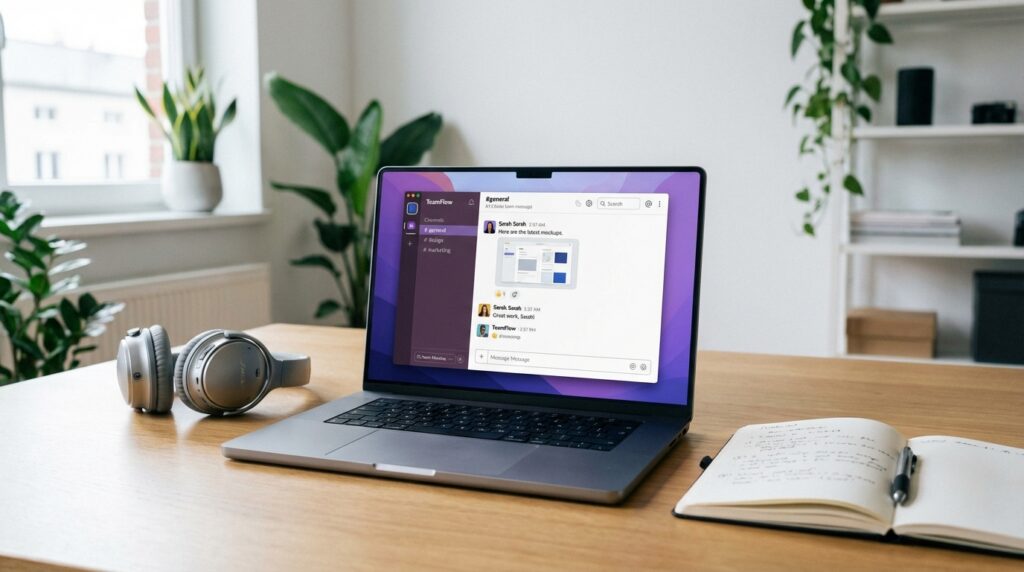
Slack’s interface is a masterclass in focused design. The three-column layout-workspaces, channels, and conversation-feels natural from day one. There’s minimal chrome, no unnecessary features cluttering your view, and everything responds instantly.
The channel organization is where Slack shines. Creating channels is frictionless: type a name, set it public or private, and you’re done. The ability to add topic descriptions, pin important messages, and use channel-specific custom emoji helps teams develop unique cultures around different projects or departments.
Threads are Slack’s killer feature for keeping conversations organized. Reply to any message in a thread, and you keep the main channel clean while allowing deeper discussions. I’ve seen teams manage thousands of daily messages without descending into chaos thanks to disciplined thread use.
Key Features
Huddles: Slack’s answer to quick audio/video calls. Click a button, and you’re in an instant voice chat with your channel members. It feels casual and spontaneous-much lower friction than scheduling a formal meeting. Screen sharing, drawing tools, and emoji reactions make huddles surprisingly effective for quick collaboration.
Workflow Builder: Create custom automated workflows without coding. Onboard new team members with a series of automated messages, set up approval processes, or create custom forms that feed into channels. It’s like having a lightweight automation tool built into your communication platform.
Canvas: Slack’s newer feature for collaborative documents right inside the platform. Create project briefs, meeting notes, or knowledge bases without leaving Slack. It’s not trying to be Google Docs-it’s more like structured documentation that lives alongside your conversations.
Integrations: This is where Slack truly differentiates itself. Over 2,600 integrations connect Slack to virtually every tool your team uses. GitHub notifications, Salesforce alerts, customer support tickets from Zendesk, analytics from Google Analytics-everything can flow into relevant Slack channels. The setup is usually straightforward, and the flexibility is unmatched.
Pros & Cons
Pros:
- Cleanest, most intuitive interface in the market
- Best-in-class search functionality with granular filters
- Superior integration ecosystem with easy setup
- Threads keep conversations organized better than alternatives
- Excellent mobile experience that mirrors desktop
- Custom emoji and reactions add personality and culture
- Status messages and availability indicators work seamlessly
- Connect with external partners without them joining your workspace
Cons:
- More expensive than Teams, especially at scale
- Video calling features lag behind dedicated solutions
- Free plan’s 90-day message history is restrictive
- No built-in file storage-relies on integrations
- Can require multiple workspaces for large organizations
- Notifications can become overwhelming without careful configuration
- Some advanced features only in Enterprise Grid tier
Pricing Breakdown
Free: Unlimited users, 90-day message history, 10 app integrations, 1:1 video calls
Pro ($8.75/user/month): Unlimited message history, unlimited integrations, group video calls, guest accounts
Business+ ($15/user/month): 99.99% uptime SLA, 24/7 support, advanced compliance, SAML SSO
Enterprise Grid (custom pricing): Unlimited workspaces, advanced security, compliance tools, dedicated support
Best For
Tech startups, digital agencies, design teams, remote-first companies, and organizations that integrate many third-party tools. If your team values communication speed and clarity over comprehensive feature sets, Slack is likely your platform.
Microsoft Teams: The Everything-Included Collaboration Suite
Microsoft Teams takes a different philosophy: why have a communication tool when you can have an entire collaboration platform? Teams combines chat, video conferencing, file storage, app integration, and more into a single, unified experience-especially powerful if you’re already in the Microsoft ecosystem.
User Interface and Experience
Teams’ interface is denser than Slack’s, reflecting its broader feature set. The left sidebar houses Chat, Teams (channels), Calendar, Calls, Files, and Apps. This comprehensive approach means more power at your fingertips but also a steeper learning curve.
The integration with Microsoft 365 is seamless in ways Slack can’t match. Every team gets a SharePoint site, shared OneNote, and Planner board automatically. Click on a colleague’s name, and you see their Outlook calendar, recent files, and shared documents instantly.
Channels work similarly to Slack but with one major difference: each channel can have multiple tabs for files, apps, wikis, or embedded dashboards. This turns channels into mini project hubs rather than just conversation streams.
Key Features
Teams Meetings: Among the best video conferencing platforms available, period. Background blur and replacement, live captions, meeting recordings with transcriptions, breakout rooms, raised hands, Together Mode, and presentation modes make Teams competitive with dedicated solutions like Zoom. The quality is consistently excellent, and the integration with Outlook calendars means scheduling is effortless.
Integrated Apps: Not just third-party integrations-the entire Microsoft 365 suite is deeply woven into Teams. Co-edit Word documents, collaborate on Excel spreadsheets, present PowerPoint slides, all without leaving the Teams interface. Version control, simultaneous editing, and commenting work flawlessly.
Phone System: Teams can replace your entire phone system with cloud-based calling, including external phone numbers. Answer customer calls directly in Teams, transfer calls between colleagues, set up auto-attendants, and manage voicemail-all integrated with your chat and calendar.
Security and Compliance: This is where Teams truly excels. Built-in compliance tools for HIPAA, GDPR, SOC 2, and dozens of other standards. Data loss prevention, eDiscovery, legal hold, information barriers, and granular permission controls. For regulated industries, this isn’t just nice to have-it’s essential.
Pros & Cons
Pros:
- Included with Microsoft 365-no additional per-user cost
- Superior video conferencing compared to Slack
- Seamless Microsoft 365 integration (Word, Excel, SharePoint, etc.)
- Built-in file storage with SharePoint backend
- Industry-leading compliance and security features
- Can replace multiple tools (chat, video, phone, file storage)
- Better free plan than Slack (unlimited chat history)
- Enterprise-ready out of the box
Cons:
- More complex interface with steeper learning curve
- Can feel bloated if you don’t need all features
- Search functionality slower and less intuitive than Slack
- Third-party integrations less polished than Slack
- Desktop app can be resource-intensive
- Organization features (teams, channels, tabs) can get confusing
- Less customization for company culture and personality
- Mobile app heavier and occasionally buggy
Pricing Breakdown
Free: Unlimited chat, 1-hour group meetings, 5GB storage per user, web and mobile access
Microsoft Teams Essentials ($4/user/month): 30-hour meetings, 10GB storage, standard support
Microsoft 365 Business Basic ($6/user/month): Teams plus web versions of Office apps, 1TB storage
Microsoft 365 Business Standard ($12.50/user/month): Teams plus full desktop Office apps, advanced security
Enterprise plans (custom): Advanced compliance, security, analytics, and unlimited storage
Best For
Enterprises already using Microsoft 365, regulated industries requiring compliance tools, organizations wanting an all-in-one solution, companies with hybrid work models requiring robust video conferencing, and teams that rely heavily on Microsoft Office applications.
Head-to-Head Comparison: Key Categories
Messaging and Channels
Winner: Slack
Slack’s messaging feels faster, cleaner, and more intuitive. Threads work better, search is superior, and channel management is simpler. Teams has caught up significantly, but Slack still edges ahead in pure messaging experience. If your team lives in text-based communication, Slack’s advantage here is meaningful.
Video Conferencing
Winner: Microsoft Teams
Not even close. Teams offers a full-featured video platform with breakout rooms, advanced backgrounds, live transcription, and rock-solid reliability. Slack’s Huddles are great for spontaneous quick chats, but for structured meetings, presentations, or larger gatherings, Teams is in a different league.
File Management
Winner: Microsoft Teams
Teams’ SharePoint integration provides true collaborative file storage with version control, permissions, and co-editing. Slack relies on external storage solutions (Google Drive, Dropbox, etc.), which works but creates fragmentation. For document-heavy teams, Teams’ approach is superior.
Integrations and Extensibility
Winner: Slack
Slack’s 2,600+ integrations beat Teams’ 1,000+, but more importantly, they’re typically easier to set up and more polished. Third-party developers prioritize Slack integration, and it shows. Teams excels at Microsoft ecosystem integration but lags with external tools. For companies using diverse tech stacks, check out how integration capabilities compare in our project management tools guide.
Mobile Experience
Winner: Slack
Slack’s mobile apps are lighter, faster, and more responsive. Teams mobile works but feels like a scaled-down version of the desktop app, sometimes slow to load and occasionally buggy. For teams that rely heavily on mobile communication, this difference matters.
Security and Compliance
Winner: Microsoft Teams
Teams’ enterprise-grade security and compliance features are more comprehensive and easier to implement. Slack Enterprise Grid offers similar capabilities, but Teams includes them at lower tiers. For healthcare, finance, government, or any regulated industry, Teams has a clear advantage.
Pricing and Value
Winner: Microsoft Teams
For organizations already using Microsoft 365, Teams is essentially free. Even standalone, Teams costs less than Slack at comparable tiers. The value proposition is stronger, especially for larger teams.
User Experience and Interface
Winner: Slack
Slack’s cleaner, more focused interface wins for daily usability. Teams packs more features, but this creates complexity. New users get productive faster in Slack. Power users eventually master both, but the learning curve differs significantly.
Making the Right Choice for Your Team
After working with both platforms extensively, here’s my honest recommendation based on different scenarios:
Choose Slack If:
- You’re a startup or small tech company (under 200 employees)
- Your team uses diverse, best-of-breed tools that need integration
- Communication speed and clarity are your top priorities
- You value user experience and want minimal learning curve
- You don’t need extensive video conferencing (or use Zoom/Google Meet separately)
- Your company culture values customization and personality
- You’re remote-first and rely heavily on asynchronous communication
- Budget isn’t your primary constraint
Choose Microsoft Teams If:
- You already use Microsoft 365 (Office, Outlook, OneDrive)
- You need robust video conferencing built-in
- You operate in a regulated industry requiring compliance tools
- You want an all-in-one solution replacing multiple tools
- You have a larger enterprise (200+ employees) with complex needs
- You need phone system capabilities
- Document collaboration (Word, Excel, PowerPoint) is central to your work
- Cost efficiency at scale is important
Consider Using Both If:
Some organizations use both strategically-Teams for formal meetings and Microsoft app integration, Slack for day-to-day communication. This isn’t ideal long-term (context fragmentation is real), but it can work during transitions or for specific departments with unique needs.
Migration Considerations
If you’re switching from one platform to another, here’s what to expect:
From Slack to Teams: Expect a 2-4 week adjustment period. The biggest challenges are the denser interface and different search behavior. Benefits appear quickly if you’re using Microsoft 365-file collaboration immediately feels more integrated.
From Teams to Slack: Usually easier, especially for messaging-heavy teams. The learning curve is gentler, but you’ll need to figure out file storage strategy and potentially add video conferencing tools.
Both platforms offer migration tools, though neither is perfect. Plan to manually recreate channels, migrate important files, and set up integrations fresh. The most important part of migration isn’t technical-it’s change management. Get team buy-in, train champions, and expect productivity dips during transition.
The Verdict: Context Matters More Than Features
After thousands of hours using both platforms, I’ve concluded there’s no universal winner. Slack is the better pure communication tool-cleaner, faster, more intuitive. Teams is the better comprehensive collaboration platform-more features, better integration with productivity tools, stronger enterprise capabilities.
For my money, here’s the simplest decision framework:
If you’re already paying for Microsoft 365, start with Teams. It’s included, it’s powerful, and the learning curve pays off through integrated workflows.
If you’re not in the Microsoft ecosystem, choose Slack. The superior messaging experience and integration flexibility justify the cost for communication-centric teams.
If you’re unsure, try both free versions with a small team or department for 30 days. Real-world usage reveals preferences that feature comparisons can’t.
The communication tool you choose becomes your digital office. Choose thoughtfully, involve your team in the decision, and commit to making it work. Both Slack and Teams are excellent platforms-the right one is the one that fits your specific context, workflow, and culture.
Frequently Asked Questions
Can I use both Slack and Microsoft Teams together?
Technically yes, and some organizations do this, but it’s not ideal. Using both creates context fragmentation-your team never knows where to look for information. If you must use both, establish clear boundaries: for example, Teams for formal meetings and Microsoft apps, Slack for daily messaging. Long-term, consolidating to one platform improves efficiency. Just like choosing between Notion and Obsidian for note-taking, having a single source of truth is usually better.
Which has better security, Slack or Teams?
Both are highly secure, but Teams has more comprehensive built-in compliance and security features at lower price tiers. Teams offers advanced features like data loss prevention, eDiscovery, legal hold, and information barriers built-in, while Slack requires Enterprise Grid for comparable capabilities. For regulated industries (healthcare, finance, government), Teams typically has the edge.
Is Microsoft Teams really free if I already have Microsoft 365?
Yes, Teams is included with most Microsoft 365 subscriptions at no additional cost. If you’re already paying for Business Basic, Business Standard, or Enterprise plans, you have full access to Teams. There’s also a standalone free version with limited features if you don’t have Microsoft 365.
Can external partners or clients join Slack or Teams?
Both platforms support external collaboration. Slack offers Slack Connect for working with people outside your organization-you can create shared channels with partners, clients, or vendors. Teams supports guest access, allowing external users to join your teams with limited permissions. Both approaches work well, though setup and permissions differ.
Which platform is better for remote teams?
Both excel for remote work, but they solve different problems. Slack is better for asynchronous, distributed teams across time zones where written communication dominates. Teams is better for hybrid or remote teams that rely heavily on video meetings and real-time collaboration on documents. Remote-first startups tend to prefer Slack; enterprises with hybrid models often prefer Teams.
How do notifications compare between Slack and Teams?
Slack’s notification system is more granular and customizable-you can set different notification levels for different channels, schedule “do not disturb” times, and use keywords to trigger notifications. Teams’ notifications work well but are less flexible. Both can become overwhelming without proper configuration; the key is establishing team norms around @mentions and channel usage.
Can I migrate from Slack to Teams or vice versa?
Yes, both directions are possible, though neither is seamless. Microsoft offers migration tools from Slack to Teams that can transfer channels, messages, and files. Going from Teams to Slack is more manual. Expect to recreate channels, migrate important files selectively, and reconfigure integrations. The biggest challenge isn’t technical-it’s change management and getting your team comfortable with a new platform.
Which platform integrates better with other tools?
Slack has more third-party integrations (2,600+ vs 1,000+) and they’re typically more polished. If your team uses diverse tools-like AI writing tools for content, various project management platforms, or specialized industry software-Slack’s integration ecosystem is superior. Teams excels with Microsoft ecosystem integration but lags with external tools, though the gap is narrowing.
Final Thoughts: Choose Based on Your Reality, Not Features
The Slack vs Teams debate will continue as both platforms evolve, but the truth is both are excellent tools. Your decision should be based on your specific context: your existing tool ecosystem, your team’s working style, your compliance requirements, and your budget.
Don’t overthink it. Start with a trial, involve your team in the decision, and commit to making your choice work. The platform matters less than how you use it-establish clear norms, create thoughtful channel structures, and train your team properly.
Your team communication tool is the foundation of your digital workplace. Whether you choose Slack’s streamlined messaging or Teams’ comprehensive collaboration suite, you’re getting a powerful platform. The best choice is the one that fits your specific needs and that your team will actually embrace and use effectively.