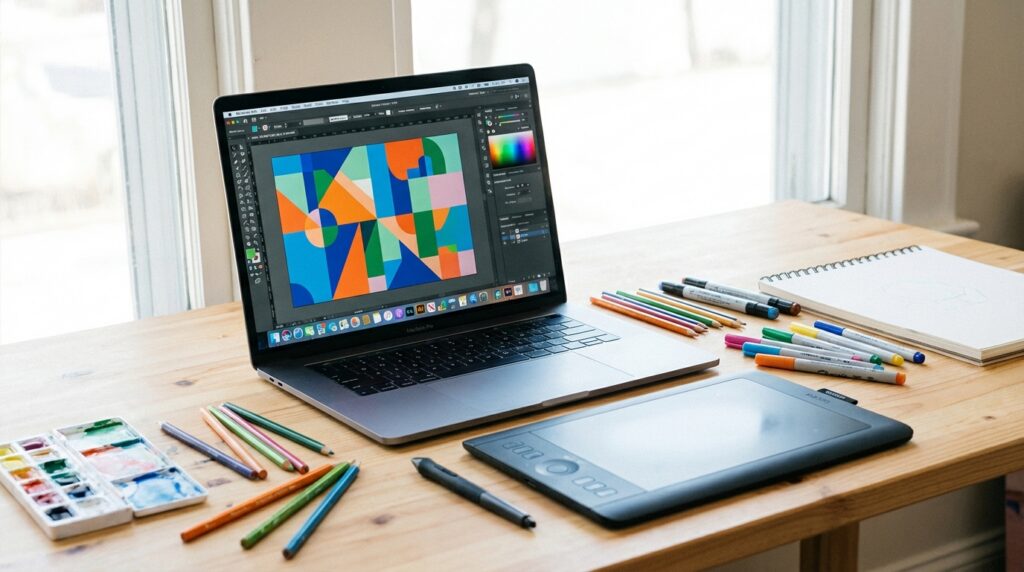
If you’ve ever wanted to create stunning graphics but felt intimidated by expensive software like Adobe Photoshop, you’re not alone. The good news? The design tool landscape has completely transformed in recent years. Today, you can create professional-quality graphics, social media posts, presentations, and even complete brand identities without spending a dime-or having any prior design experience.
I’ve spent the past three months testing over 20 free graphic design tools to find the ones that actually deliver on their promises. Whether you’re a small business owner creating social posts, a blogger designing featured images, or someone exploring design as a potential career, this guide will help you find the perfect tool for your needs.
Quick Comparison: Best Free Graphic Design Tools
| Tool | Best For | Free Plan Limits | Learning Curve | Platform |
|---|---|---|---|---|
| Canva | Social media & marketing materials | 250K+ templates, 5GB storage | Very Easy | Web, iOS, Android |
| Figma | UI/UX design & prototyping | 3 files, unlimited personal projects | Moderate | Web, Desktop |
| Photopea | Photo editing (Photoshop alternative) | Unlimited, ad-supported | Moderate | Web only |
| GIMP | Advanced photo manipulation | Fully free, open-source | Steep | Windows, Mac, Linux |
| Inkscape | Vector graphics & illustrations | Fully free, open-source | Moderate | Windows, Mac, Linux |
| Adobe Express | Quick social media graphics | Thousands of templates, 2GB storage | Very Easy | Web, iOS, Android |
| Pixlr | Fast photo edits | Basic features, ad-supported | Easy | Web, iOS, Android |
| Gravit Designer | Professional vector design | Unlimited cloud saves | Moderate | Web, Desktop |
1. Canva: The All-Around Champion for Beginners
Canva has become synonymous with accessible design for good reason. It’s the tool I recommend to anyone just starting their design journey, and it’s what I personally use for quick social media graphics and presentations.
What Makes Canva Stand Out
The platform’s true magic lies in its template library. With over 250,000 professionally designed templates, you’re essentially getting a head start on every project. Need an Instagram story? There are hundreds of on-trend templates waiting. Creating a presentation? You’ll find templates for every industry and style.
The drag-and-drop interface is genuinely intuitive. Within minutes of signing up, most users can resize images, change colors, and swap out text. The Smart Mockup feature is particularly impressive-upload your design and instantly see it on t-shirts, mugs, phone cases, and more.
Pros & Cons
Pros:
- Massive template library covering virtually every use case
- Brand kit feature (even in free plan) for consistent colors and fonts
- Built-in content planner for social media scheduling
- Excellent mobile apps for designing on the go
- Background remover works surprisingly well (limited in free version)
Cons:
- Many premium templates and elements require Pro subscription
- Can feel limiting for advanced designers
- Export options restricted (no SVG in free plan)
- Templates can sometimes feel “obviously Canva”
Pricing
The free plan is genuinely useful for most casual users. Canva Pro costs $120/year (often discounted) and adds unlimited premium content, background remover, brand kit for multiple brands, and team collaboration features. For serious content creators, it’s worth the investment.
Best For
Small business owners, social media managers, bloggers, teachers, and anyone who needs to create professional-looking graphics quickly without a design background.
2. Figma: The Professional’s Choice for UI/UX Design
While Canva dominates social media graphics, Figma has become the industry standard for interface design. If you’re interested in web design, app development, or UX design, this is where you should start.
What Makes Figma Powerful
Figma’s real-time collaboration features are unmatched. Multiple designers can work on the same file simultaneously, seeing each other’s cursors and changes instantly. It’s like Google Docs for design-a comparison Figma itself embraces.
The component system is brilliant for maintaining consistency. Create a button once, turn it into a component, and use it throughout your design. Change the master component, and all instances update automatically. For anyone building design systems or working on multi-page projects, this is transformative.
Pros & Cons
Pros:
- Browser-based with offline desktop apps available
- Unlimited personal files (3 files limit only applies to teams)
- Real-time collaboration that actually works
- Robust plugin ecosystem for extended functionality
- Prototyping capabilities built in
- Version history to revert changes
Cons:
- Steeper learning curve than template-based tools
- Not ideal for photo editing or illustration
- Can be resource-intensive on older computers
- Limited offline functionality in browser version
Pricing
Figma’s free Starter plan is exceptionally generous for individual designers-unlimited personal files, unlimited collaborators on up to 3 files, and access to community plugins. The Professional plan ($12/editor/month) primarily adds team features like unlimited files and advanced prototyping.
Best For
UI/UX designers, web designers, product designers, and anyone working on digital interfaces. Also excellent for creating wireframes and interactive prototypes. If you’re considering a career in design, learning Figma is increasingly essential.
3. Photopea: The Hidden Photoshop Alternative
Photopea is one of those tools that makes you wonder how it’s free. It’s a browser-based image editor that replicates Adobe Photoshop’s interface so closely that if you’ve used Photoshop before, you’ll feel right at home. No download, no installation, no account required-just open the website and start editing.
What Makes Photopea Impressive
The format support is extraordinary. Photopea can open and edit PSD (Photoshop), XCF (GIMP), Sketch, XD, and dozens of other formats. This makes it perfect for collaborating with designers who use professional software, even if you’re not paying for those expensive subscriptions.
The layer system, adjustment layers, smart objects, and blending modes all work similarly to Photoshop. I’ve used it to retouch photos, create composite images, design website mockups, and even prepare print-ready files-all without leaving my browser.
Pros & Cons
Pros:
- Near-perfect Photoshop interface replication
- Extensive file format support including PSD
- No installation or account required
- Regular updates with new features
- Works entirely in browser but feels like native software
Cons:
- Ads in the free version (can be removed for $5/month)
- Requires internet connection
- Some advanced Photoshop features missing
- Performance depends on browser and internet speed
Pricing
Completely free with ads. Premium subscription ($5/month or $40/year) removes ads and adds priority support. Even with ads, it’s usable-they’re displayed in the interface but don’t interrupt your workflow.
Best For
Anyone who needs Photoshop-level photo editing without the subscription cost. Perfect for editing photos, creating graphics for print, working with PSD files, or learning image editing before committing to expensive software.
4. GIMP: The Open-Source Powerhouse
GIMP (GNU Image Manipulation Program) has been the free Photoshop alternative for over two decades. While its interface isn’t as polished as commercial options, its capabilities rival professional software in many ways.
What Makes GIMP Powerful
GIMP is fully-featured professional software that just happens to be free. Color correction, retouching, compositing, layer masks, channels, paths-it’s all here. The customization options are nearly endless, from custom brushes to automated batch processing via scripts.
The open-source nature means a passionate community creates plugins, brushes, and scripts extending functionality beyond even Photoshop in some areas. Need to process 1,000 images with the same watermark? GIMP can automate that.
Pros & Cons
Pros:
- Completely free forever, no limitations
- Professional-grade features
- Highly customizable interface and tools
- Extensive plugin and script ecosystem
- Cross-platform (Windows, Mac, Linux)
- No cloud dependency or account required
Cons:
- Interface feels dated and less intuitive
- Steeper learning curve than modern alternatives
- No native CMYK support (workarounds exist)
- Some tools behave differently than Photoshop
Pricing
Completely free and open-source. No premium version, no upsells, no subscriptions.
Best For
Photographers doing serious retouching, digital artists, Linux users, and anyone willing to invest time learning in exchange for powerful free software. Also great for educators teaching image editing without expensive software licenses.
5. Inkscape: Vector Graphics for Everyone
While tools like Canva offer some vector capabilities, Inkscape is a true Adobe Illustrator alternative. If you need to create logos, icons, illustrations, or anything that needs to scale infinitely without losing quality, Inkscape is your answer.
What Makes Inkscape Essential
Inkscape works with SVG (Scalable Vector Graphics), the web standard for vector images. Create a logo in Inkscape, and it’ll look perfect whether it’s displayed on a business card or a billboard. This scalability makes it ideal for branding work.
The path tools, bezier curve editing, and node manipulation are professional-grade. I’ve used Inkscape to create logos for clients, design icons for websites, and even prepare graphics for laser cutting and CNC machines-all without touching paid software.
Pros & Cons
Pros:
- True vector editing capabilities
- Native SVG format (web-friendly)
- Excellent text manipulation and typography tools
- Can import/export AI and EPS files
- Active community with tutorials and extensions
Cons:
- Learning curve for vector concepts
- Interface can feel overwhelming initially
- Performance issues with very complex illustrations
- Some Illustrator features not available
Pricing
Completely free and open-source, just like GIMP. No paid tiers or limitations.
Best For
Logo designers, illustrators, icon creators, and anyone working on graphics that need to scale. Particularly valuable for small businesses creating brand assets without hiring expensive designers.
6. Adobe Express: Simplified Adobe Power
Adobe Express (formerly Adobe Spark) is Adobe’s answer to Canva. It brings some Adobe quality to a beginner-friendly interface, making it a compelling middle ground between template tools and professional software.
What Makes Adobe Express Worthwhile
The Adobe brand means access to high-quality stock photos, fonts, and design assets. Even in the free tier, you get access to thousands of licensed Adobe Stock images you can use in your projects-something most competitors charge for.
The Quick Actions are brilliant for common tasks: remove backgrounds, resize images, convert file formats, trim videos, or animate static graphics. Each action takes seconds and requires no technical knowledge.
Pros & Cons
Pros:
- Adobe quality without Adobe complexity
- Licensed stock photos included in free plan
- Quick actions for common tasks
- Video editing capabilities
- Integrates with other Adobe apps if you upgrade
Cons:
- More limited than Canva in some areas
- Brand kit only in premium ($10/month)
- Adobe account required
- Pushes Creative Cloud upsells frequently
Pricing
Free plan includes 2GB storage and thousands of templates. Premium plan ($10/month) adds 100GB storage, brand kits, background removal, and premium templates. Often bundled with Creative Cloud subscriptions.
Best For
Users who want Canva-like simplicity with Adobe polish, content creators who need both images and video, and anyone already in the Adobe ecosystem.
7. Pixlr: Fast Photo Editing in Your Browser
Pixlr offers two versions: Pixlr X for quick edits and Pixlr E for more advanced editing. Both run in your browser, making them perfect for quick photo fixes when you don’t want to download software.
What Makes Pixlr Useful
The speed is what stands out. Open Pixlr X, upload a photo, make your adjustments, and download-all in under a minute for simple edits. The AI-powered tools like auto-enhance and one-click background removal work remarkably well for free tools.
Pixlr E provides a more traditional layer-based editing experience, closer to Photoshop or Photopea, but with a slightly simpler interface that’s easier for beginners to grasp.
Pros & Cons
Pros:
- Two interfaces for different skill levels
- AI-powered editing features
- Mobile apps available
- No account required for basic use
- Regular updates and improvements
Cons:
- Ads in free version can be intrusive
- Some features locked behind Plus subscription
- Export limits in free tier
- Less powerful than Photopea or GIMP
Pricing
Free with ads and limitations. Pixlr Plus ($5/month) removes ads, adds AI tools, increases export limits, and unlocks premium templates.
Best For
Quick photo edits, social media image preparation, and users who want something between Canva and Photoshop in terms of complexity.
8. Gravit Designer: Professional Vector Design
Gravit Designer is often overlooked but offers an impressive balance between Inkscape’s power and modern interface design. It’s particularly strong for web and UI design, making it a solid Illustrator alternative.
What Makes Gravit Designer Competitive
The interface feels modern and responsive, borrowing design patterns from tools like Figma and Sketch. Pages, symbols (similar to Figma’s components), and cloud syncing make it excellent for multi-page documents and maintaining design consistency.
The knife tool, boolean operations, and path editing are all professional-grade. I’ve used Gravit for everything from logo design to creating print-ready brochures, and it handles complex projects without choking.
Pros & Cons
Pros:
- Modern, intuitive interface
- Cloud storage for accessing files anywhere
- Works offline as desktop app or online in browser
- Symbol system for reusable design elements
- Excellent for both print and web design
Cons:
- Some advanced features require Pro version
- Smaller community than Inkscape or Figma
- Limited third-party plugins
- Free version has export limitations
Pricing
Free version is quite capable with unlimited cloud saves. Gravit Designer Pro ($99/year) adds CMYK color mode, advanced export options, offline fonts, and premium support.
Best For
Designers who want vector capabilities with a modern interface, web designers, and those creating multi-page documents or presentations.
How to Choose the Right Tool for Your Needs
With so many great options, how do you decide? Here’s my recommendation based on your primary use case:
For social media graphics and marketing materials: Start with Canva. The template library alone will save you countless hours, and the learning curve is virtually non-existent.
For photo editing and retouching: Photopea if you want something quick and browser-based, GIMP if you’re willing to invest time learning for maximum power.
For logos and vector graphics: Inkscape for maximum capabilities, Gravit Designer if you prefer a modern interface.
For UI/UX and web design: Figma is the clear winner and has become essential for professional work in this field.
For quick edits and simple projects: Adobe Express or Pixlr X for maximum speed.
Tips for Getting Started
Here’s what I wish someone had told me when I started exploring design tools:
Start with templates: Don’t stare at a blank canvas. Use templates to understand good design principles, then customize them to make them your own.
Learn keyboard shortcuts: Even in beginner tools like Canva, learning shortcuts like Ctrl+D (duplicate), Ctrl+G (group), and Ctrl+Z (undo) will dramatically speed up your workflow.
Watch official tutorials: Most of these tools have excellent YouTube channels with official tutorials. Spend 30 minutes watching basics before diving in.
Don’t try to learn everything: Focus on the tools you need for your specific projects. You don’t need to master every feature.
Explore integrations: Many of these tools integrate with other services. Canva connects to social media schedulers, Figma integrates with development tools, etc.
Frequently Asked Questions
Can free design tools really replace expensive software like Adobe Creative Cloud?
For many users, absolutely. If you’re creating social media graphics, presentations, simple logos, or web mockups, free tools like Canva, Figma, or Photopea can handle everything you need. Professional photographers, print designers, and those working in collaborative agency environments may still benefit from Adobe’s advanced features and industry-standard file formats, but the gap has narrowed significantly.
Do I need design experience to use these tools?
Not at all. Tools like Canva and Adobe Express are specifically designed for non-designers. They provide templates, suggestions, and intuitive interfaces that make good design accessible. Start with templates, customize them to your needs, and you’ll naturally pick up design principles along the way.
Which tool is best for small business branding?
For comprehensive branding (logo, business cards, social media, marketing materials), I recommend combining tools: Use Inkscape or Gravit Designer to create your logo (vector format ensures it scales perfectly), then use Canva for ongoing marketing materials and social media graphics. If you’re looking for tools that work well together, check out our guide on best free project management tools to organize your branding projects.
Are there limitations to free versions I should know about?
Yes, though they vary by tool. Common limitations include watermarks (rare in 2026), restricted export formats (e.g., no SVG in Canva free), ads (Photopea, Pixlr), limited cloud storage, and access to premium templates or stock images. However, the core functionality is typically fully accessible in free versions.
Can I use designs created with these free tools commercially?
Generally yes, but read each tool’s terms of service. Canva free users can use designs commercially if they don’t include Canva Pro elements. Figma, GIMP, and Inkscape have no restrictions. Adobe Express allows commercial use of free templates. Always check if you’re using third-party elements (fonts, stock photos) that might have their own licensing restrictions.
What if I need to collaborate with others?
Figma leads in real-time collaboration, with multiple users editing simultaneously. Canva also offers excellent collaboration features in both free and paid tiers. Gravit Designer supports cloud-based sharing. GIMP and Inkscape are desktop-only and less suited for collaboration, though you can use cloud storage services to share files.
Should I learn multiple tools or master one?
I recommend developing competence in 2-3 tools that cover different needs. For example: Canva for quick social graphics, Figma for web design, and Photopea for photo editing. This approach gives you flexibility without overwhelming yourself. As your skills grow, you’ll naturally expand your toolkit.
Final Verdict: Start Creating Today
The barrier to entry for graphic design has never been lower. Whether you’re promoting a small business, creating content for social media, or exploring design as a potential career path, there’s a free tool perfectly suited to your needs.
My personal recommendation? Start with Canva if you’re a complete beginner-you’ll be creating professional-looking graphics within an hour. As you grow, experiment with Figma for web/UI design or Inkscape for vector work. Keep Photopea bookmarked for quick photo edits.
The most important thing is to start. Pick one tool from this list, watch a 10-minute tutorial, and create something today. You’ll be amazed at what you can accomplish with free tools and a bit of creativity.
If you’re building a complete productivity toolkit, don’t miss our guides on best AI writing tools for content creation and Notion vs Obsidian for organizing your design projects and assets.