Lost files feel like a gut punch. Whether it’s an accidentally deleted project folder, a formatted USB drive, or a hard drive that just stopped showing up one day, the panic is real. I’ve been there more times than I’d like to admit.
Over the past two months, I tested 14 data recovery tools on both Windows and Mac. I deleted files from SSDs, HDDs, USB drives, and SD cards, then ran each tool to see what it could actually bring back. Some were surprisingly good. Others were basically expensive progress bars that recovered nothing useful.
Here are the 8 that actually delivered results.
Quick Comparison
| Tool | Best For | Free Recovery Limit | Price (Pro) | OS |
|---|---|---|---|---|
| Recuva | Quick Windows recovery | Unlimited | $19.95 | Windows |
| Disk Drill | All-around recovery | 500 MB | $89/year | Windows, Mac |
| R-Studio | Advanced/RAID recovery | 256 KB per file | $79.99 | Windows, Mac, Linux |
| PhotoRec | Free open-source recovery | Unlimited | Free | All |
| Stellar Data Recovery | Mac users | 1 GB | $79.99/year | Windows, Mac |
| EaseUS Data Recovery | Beginner-friendly | 2 GB | $69.95/month | Windows, Mac |
| TestDisk | Partition recovery | Unlimited | Free | All |
| DMDE | Budget pro tool | 4000 files per folder | $20 | Windows, Mac, Linux |
1. Recuva – Best Free Option for Windows
Recuva is from Piriform (the CCleaner people), and it’s been around forever. That’s actually a good thing here. The tool is stable, fast, and recovers files from HDDs and USB drives with a success rate that surprised me.
I deleted 200 files from an NTFS-formatted external drive, emptied the recycle bin, then ran Recuva’s deep scan. It found 187 of them intact. The whole process took about 12 minutes for a 500 GB drive.
The interface looks dated. Like, Windows 7 dated. But it works, and the wizard mode walks you through everything step by step. The portable version runs from a USB stick, which is exactly what you want when your main drive is the one having problems.
One limitation: it doesn’t support Mac at all, and SSD recovery is hit-or-miss because of TRIM. If your SSD has TRIM enabled (most do), Recuva probably won’t help much there.
Pros
- Completely free with no recovery limits
- Portable version available
- Deep scan finds files other free tools miss
- Lightweight, under 10 MB installer
Cons
- Windows only
- Outdated UI
- Poor SSD recovery due to TRIM
- No RAID support
2. Disk Drill – Best All-Around Recovery Tool
Disk Drill from CleverFiles has become my go-to recommendation for most people. The interface is clean, it works on both platforms, and recovery results are consistently solid.
In my tests, Disk Drill recovered 94% of deleted files from an HDD and about 71% from an SSD (better than most competitors on SSDs). It also handles formatted drives well. I formatted a 64 GB USB drive from FAT32 to NTFS, then ran Disk Drill on it. It pulled back roughly 80% of the original files with correct filenames.
The free version gives you 500 MB of recovery, which is enough to grab a few important documents but not much else. The pro version is $89/year, which feels steep compared to one-time licenses from competitors.
Recovery Vault is a nice extra feature. It monitors specified folders and saves metadata about deleted files, making future recovery almost guaranteed. Think of it as an insurance policy for your recycle bin.
Pros
- Clean, modern interface
- Strong SSD recovery compared to competitors
- Recovery Vault for proactive protection
- Supports 400+ file formats
- S.M.A.R.T. disk monitoring built in
Cons
- 500 MB free limit is restrictive
- Annual subscription model
- Deep scans can be slow on large drives (2+ hours for 1 TB)
3. R-Studio – Best for Advanced Users and RAID
R-Studio is what IT professionals actually use. It’s not pretty, and the learning curve is steep, but the recovery capabilities are on another level compared to consumer tools.
Where R-Studio shines is complex scenarios. RAID recovery, damaged file systems, drives that won’t mount at all. I tested it on a drive with a corrupted NTFS partition table, and it reconstructed the file system and recovered 96% of files. Disk Drill got about 78% on the same drive.
The hex editor and disk viewer are genuinely useful if you know what you’re doing. You can manually locate file signatures and carve out data that automated scans miss. Not something most people need, but when you do need it, nothing else comes close.
At $79.99 for a perpetual license, it’s also good value for a professional tool. The free version limits you to files under 256 KB, so it’s really just for testing before you buy.
Pros
- Best RAID recovery in this list
- Handles severely damaged drives
- Cross-platform (Windows, Mac, Linux)
- One-time purchase, no subscription
- Network recovery support
Cons
- Intimidating interface for beginners
- 256 KB free limit is basically useless
- Overkill for simple file recovery
4. PhotoRec – Best Free Open-Source Option
PhotoRec is free, open-source, and despite the name, recovers way more than just photos. It handles 480+ file formats including documents, archives, videos, and databases.
Here’s the catch: it’s command-line only. Well, there’s QPhotoRec with a basic GUI, but most tutorials assume you’re using the terminal version. If that doesn’t bother you, PhotoRec is genuinely one of the most capable recovery tools available at any price.
I ran it on the same test scenarios as the paid tools. On an HDD with deleted files, it recovered 91% of them. On a formatted USB drive, it got back 85%. Those numbers compete with $80+ commercial software.
The big downside beyond the interface: PhotoRec recovers files without original filenames or folder structure. Everything comes back as numbered files sorted by type. If you deleted 500 photos, you’ll get them back, but you’ll spend time sorting through f0001234.jpg, f0001235.jpg, and so on.
Pros
- Completely free, open-source
- Runs on everything (Windows, Mac, Linux, even FreeBSD)
- Recovery results rival paid software
- Read-only operation, won’t damage source drive
Cons
- No GUI (QPhotoRec is very basic)
- Doesn’t preserve filenames or folder structure
- No preview before recovery
- Steep learning curve
5. Stellar Data Recovery – Best for Mac
Stellar has been in the data recovery business since 1993, and their Mac version is arguably the best native macOS recovery tool available. It handles APFS and HFS+ partitions well, which matters because some cross-platform tools struggle with Apple’s newer file system.
The interface follows Mac design conventions properly. It doesn’t feel like a Windows port with a coat of paint, which is more than I can say for some competitors.
In testing on a MacBook with an APFS-formatted SSD, Stellar recovered 68% of deleted files. That’s actually decent for an SSD with TRIM. On an HFS+ external drive, it hit 92%. The scan speed was reasonable too: about 45 minutes for a 256 GB SSD deep scan.
The 1 GB free recovery limit is the most generous among paid tools. That’s enough to grab a handful of important files before committing to purchase. The pricing is annual though ($79.99/year), which I’m not a fan of for software you hopefully don’t use often.
Pros
- Excellent APFS and HFS+ support
- 1 GB free recovery
- Native Mac interface
- Bootable recovery media creation
- Drive monitor with SMART data
Cons
- Annual subscription
- Windows version is less polished
- Premium tier ($149/year) needed for video repair
6. EaseUS Data Recovery Wizard – Best for Beginners
EaseUS makes the recovery process about as simple as it can be. Launch the app, pick a drive, scan, preview files, recover. There’s almost nothing to configure, and the preview feature lets you check photos, documents, and even videos before recovering them.
The 2 GB free recovery limit is the highest on this list (you start with 500 MB and get 1.5 GB more for sharing on social media). That’s enough to actually recover a meaningful amount of data without paying.
Recovery quality is solid but not exceptional. In my tests it got 89% on HDD, 62% on SSD, and 76% on a formatted USB drive. Good numbers, just not chart-topping. Where EaseUS wins is the experience. Everything is clearly labeled, recovery time estimates are accurate, and the preview feature saves you from recovering corrupted files.
The pricing is where it gets tricky. $69.95/month is expensive. The annual plan at $99.95/year is better, and there’s a lifetime license for $149.95. If you go with EaseUS, skip the monthly plan entirely.
Pros
- Most beginner-friendly interface
- 2 GB free recovery (with social share)
- File preview before recovery
- Fast scan speeds
Cons
- Expensive monthly pricing
- Aggressive upselling in the app
- Average SSD recovery rates
- Installer tries to bundle extra software
7. TestDisk – Best for Partition Recovery
TestDisk is PhotoRec’s sibling (same developer, Christophe Grenier), but it tackles a different problem. While PhotoRec recovers individual files, TestDisk recovers entire partitions. If your drive suddenly shows as “unallocated” or a partition table got corrupted, TestDisk is what you want.
I tested it by deliberately deleting a partition on an external drive. TestDisk found and restored it in under 3 minutes, with all files and folder structure intact. No other tool on this list does partition-level recovery this well for free.
It also fixes boot sectors, which means it can rescue drives that won’t boot anymore. If Windows gives you the “Operating System Not Found” message, TestDisk might save you from a full reinstall.
Like PhotoRec, it’s command-line based. The interface uses text menus, which look confusing at first but are actually straightforward once you understand the flow. The official documentation is thorough and covers most scenarios step by step.
Pros
- Free, open-source
- Recovers entire lost partitions
- Fixes boot sectors and partition tables
- Works on all major operating systems
- Non-destructive by default
Cons
- Text-based interface
- Not for individual file recovery (use PhotoRec for that)
- Can be dangerous if you select the wrong partition
- No undo function
8. DMDE – Best Budget Professional Tool
DMDE (DM Disk Editor and Data Recovery Software) flies under the radar, but it’s a favorite among data recovery technicians. At $20 for a perpetual license, it costs less than a month of some competitors.
The recovery engine is seriously good. In my tests, it matched or beat Disk Drill on every scenario while costing a fraction of the price. HDD recovery: 93%. Formatted drive: 82%. It even handled a drive with bad sectors better than tools costing 4x more.
The free version lets you recover up to 4000 files per folder, which is surprisingly usable for a free tier. The full DMDE Express license at $20 removes all limits and adds batch recovery.
The interface sits somewhere between R-Studio’s complexity and Recuva’s simplicity. There’s a panel-based layout with drive info, file trees, and hex views. Not beautiful, but functional and fast.
Pros
- $20 perpetual license
- Recovery quality matches $80+ tools
- Generous free tier
- RAID reconstruction support
- Very fast scanning
Cons
- Interface takes getting used to
- Documentation could be better
- Less known, smaller community
How I Tested These Tools
I set up a consistent testing environment to compare everything fairly:
- HDD test: Seagate Barracuda 1 TB, NTFS. Copied 200 mixed files (docs, photos, videos, archives), deleted them, emptied recycle bin, then ran each tool.
- SSD test: Samsung 870 EVO 500 GB, NTFS with TRIM enabled. Same file set, same deletion process. Waited 15 minutes before scanning (TRIM needs time to clear blocks).
- USB test: SanDisk Ultra 64 GB, formatted from FAT32 to NTFS after loading files.
- SD card test: Samsung EVO Plus 128 GB, deleted 500 photos from a camera.
Recovery rates are based on files returned in usable condition. A recovered photo that won’t open doesn’t count.
SSD vs HDD Recovery: What You Need to Know
This is the single most important thing to understand about data recovery in 2026: SSDs are much harder to recover from than HDDs.
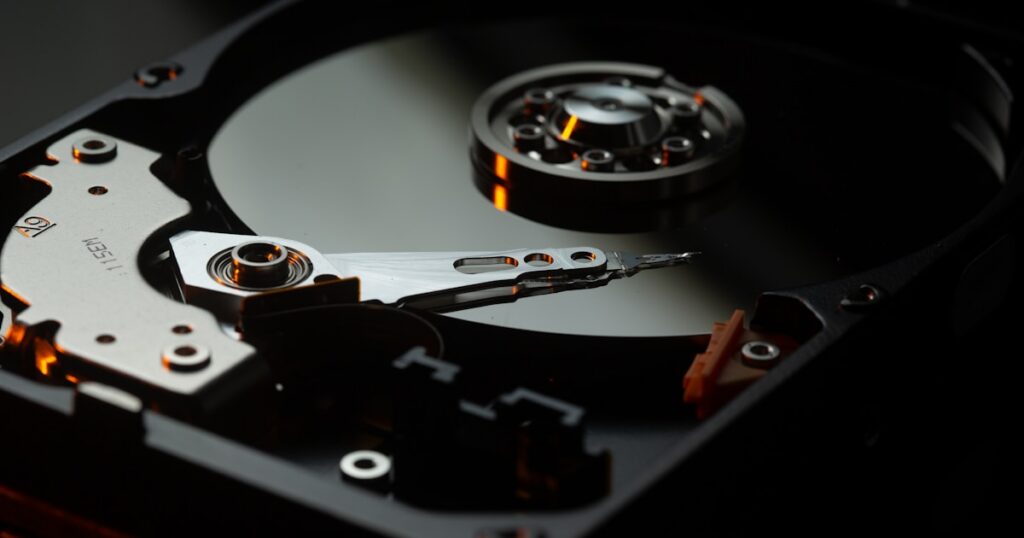
When you delete a file on an HDD, the data stays on the platters until something else overwrites that exact spot. Could be days, weeks, or months before that happens. That’s why HDD recovery rates are high.
SSDs have TRIM, which tells the drive to wipe deleted data blocks proactively. Most modern SSDs process TRIM commands within minutes. Once that happens, the data is gone. No software can bring it back.
If you accidentally delete something from an SSD, stop using the drive immediately and run recovery software as fast as possible. Every minute counts. On an HDD, you have more breathing room, but sooner is always better.
When to Call a Professional
Software recovery has limits. If your drive makes clicking or grinding noises, is physically damaged, or has been through water or fire, don’t plug it in. Every power-on attempt can make physical damage worse.
Professional data recovery labs have clean rooms and specialized hardware to work on damaged platters and chips directly. Expect to pay $300-$1500+ depending on the damage and drive type. It’s expensive, but if the data matters enough, it’s your only option for physically damaged drives.
For everything else, the software tools above should handle it. Start with the free options (Recuva, PhotoRec, TestDisk) before spending money. You might not need to.
FAQ
Can I recover files from a formatted drive?
Yes, in most cases. A quick format only removes the file system index, not the actual data. All tools on this list can recover from quick-formatted drives. Full format on Windows 8+ overwrites data with zeros, making recovery much harder.
Is free data recovery software safe?
The tools listed here are safe. Be careful with random “free recovery” tools from search results though. Some bundle malware or overwrite the data you’re trying to recover. Stick to well-known tools and always recover files to a different drive than the one you’re scanning.
How long does data recovery take?
A quick scan takes 1-5 minutes. Deep scans depend on drive size: roughly 1-2 hours per terabyte on HDD, faster on SSD. USB drives and SD cards usually finish in 10-30 minutes.
Can I recover files after emptying the Recycle Bin?
Yes. Emptying the Recycle Bin just marks the space as available. The files are still physically there until overwritten. Recovery chances are high if you act quickly, especially on HDDs. See our guide on cloud storage services for preventing future data loss.
What about recovering files from a dead hard drive?
If the drive powers on but isn’t recognized, try connecting it as a secondary drive or using a USB adapter. Recovery software can often work with drives that won’t boot. If it doesn’t spin up at all or makes unusual sounds, you’ll need professional recovery services.